

Features

  • Tabs added through the woocommerce_product_tabs filter, so they line up with Description, Additional information and Reviews in classic templates and in the Product Details block of block themes such as Twenty Twenty-Five
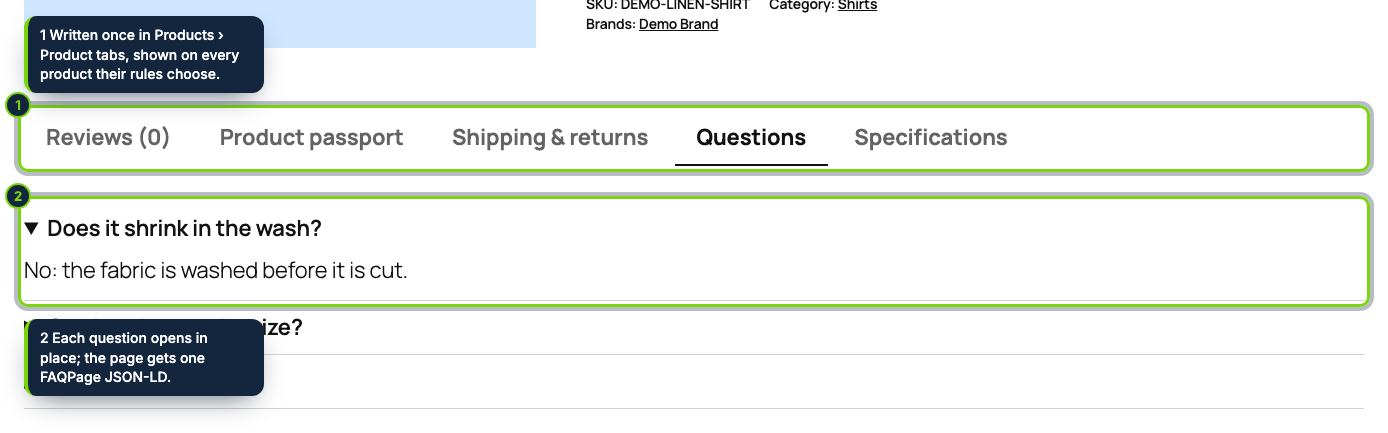
  • Or our own block after Product Details: WAI-ARIA tabs with arrow-key navigation, or an accordion, switching to an accordion on phones
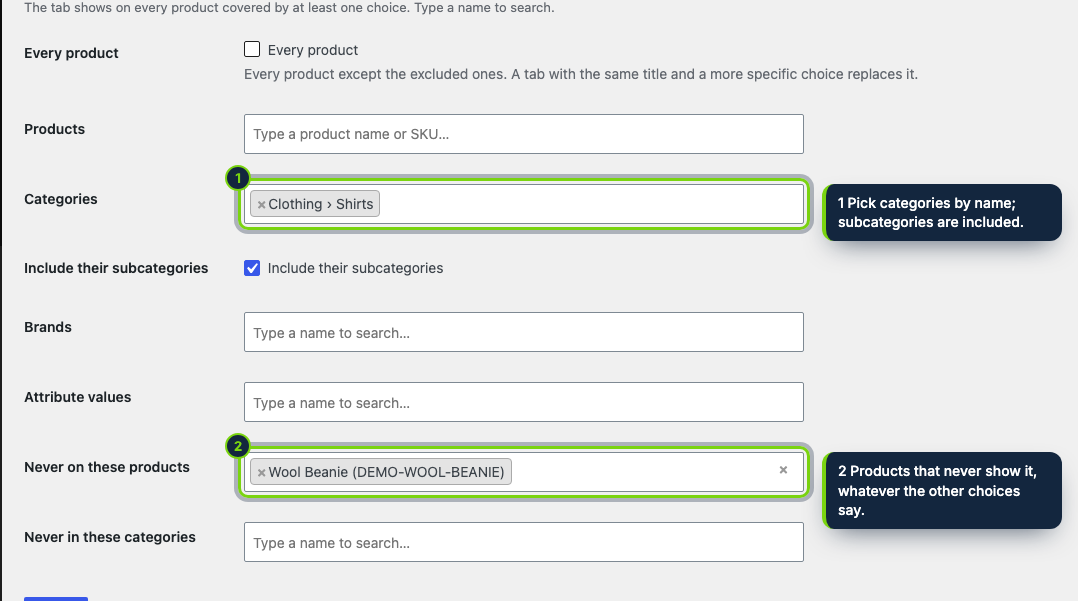
  • Targeting with WooCommerce’s own search boxes: all products, chosen products, product categories and their children, core product brands and global attribute terms such as Size: M, plus exclusions
  • Same title, one winner: a store-wide “Delivery” tab gives way to the one written for a single category
  • A Product tabs panel in the Product data box: hide a tab for this product, replace its text, add up to three product-only tabs and fill in the custom fields
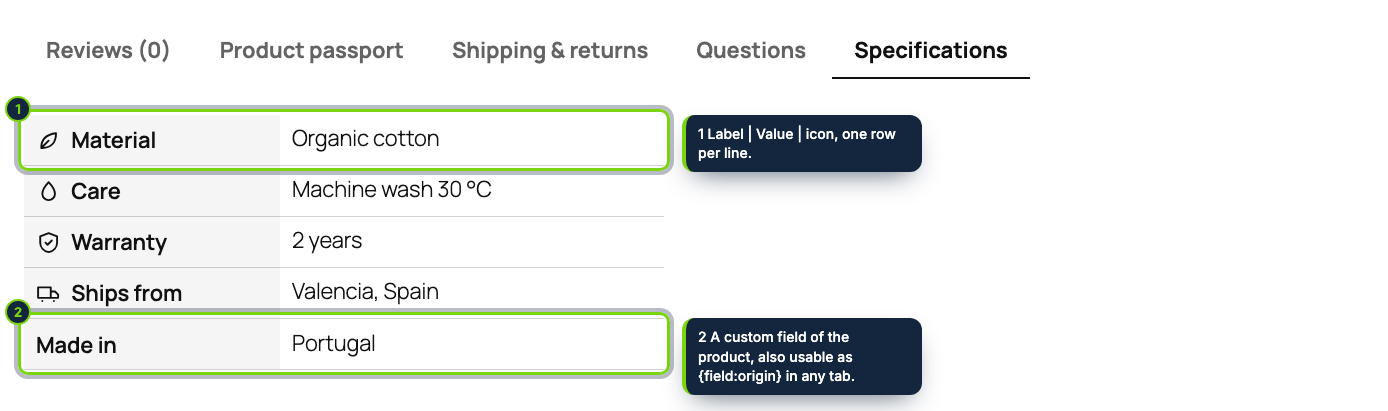
  • Rich content with the WordPress editor, FAQ blocks, specification rows with small icons we drew, and file lists filled from the media library
  • Placeholders such as {product_name}, {brand}, {reference} for the SKU, {feature:Size} and {field:material}
  • One FAQPage JSON-LD per page, settings under WooCommerce › Settings › Products › Product tabs, English, Spanish and French

A WooCommerce shop with more than a handful of products ends up pasting the same delivery times, returns rules and care tips into every product description, then hunting them down when something changes. Product Tabs & Custom Fields turns each of those texts into a tab you maintain once, shown automatically on the products it targets.

A tab can be rich text, a list of questions and answers, a specifications table or a set of downloadable files. You target it at the whole catalogue, some product categories, a brand, an attribute value or a list of products, exclude what does not fit, and give it dates if it is seasonal. On any product you can still hide a tab, rewrite it or add a tab that only that product has. Custom fields (material, origin, weight per square metre…) are typed once per product and printed in a clean table.

How it fits into WooCommerce

wp-admin
Products › Product tabs holds the tabs, the custom fields and the tester; options live in WooCommerce › Settings › Products › Product tabs. Products are picked with WooCommerce’s product search, categories, brands and attribute terms with its enhanced selects.
Product edit page
A Product tabs tab in the Product data box explains every tab of that product and holds its overrides and custom field values; it is saved with the product.
Storefront
By default the tabs join WooCommerce’s own through woocommerce_product_tabs, which serves both classic templates and the Product Details block. The other layouts print our block after Product Details (block themes) or after the summary (classic themes). The HTML is the same for every visitor, so page caches are fine.
Versions
WordPress 7.1 and WooCommerce 11.2, tested with Twenty Twenty-Five; HPOS compatible.

Installation

  1. Step 1

    Download the zip from My account › Downloads on ecom-addons.com.

  2. Step 2

    In wp-admin, go to Plugins › Add New Plugin › Upload Plugin, choose the zip and activate it.

  3. Step 3

    Open Products › Product tabs, add a tab and pick the products, categories or brands that show it.

Download the step-by-step guide (PDF)

FAQ

Does it work with block themes?

Yes. The Product Details block prints WooCommerce’s tabs, ours included, and our own block layout is placed right after it.

Can I attach PDFs?

Yes. In a “Files and documents” tab, the media library button adds each chosen file as a line; shoppers get a list of download links with the file type.

Will the FAQ markup bring rich results?

The FAQPage JSON-LD is valid, but Google shows FAQ results only for some government and health sites since 2023. Turn it off if an SEO plugin already prints FAQ markup.

Is anything deleted when I remove the plugin?

Tabs, fields and product values are removed on uninstall unless “Keep the tabs and fields” is ticked.

Version history

  1. Loading…

Reviews

Loading…