
Features
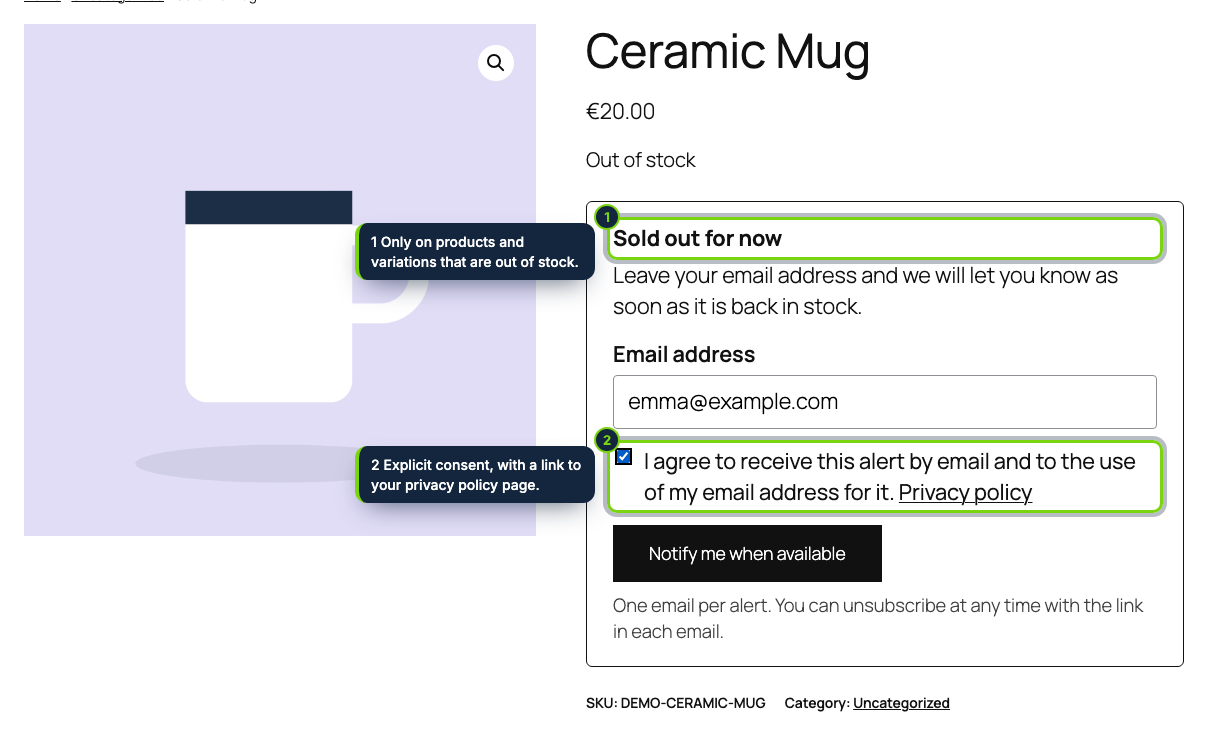
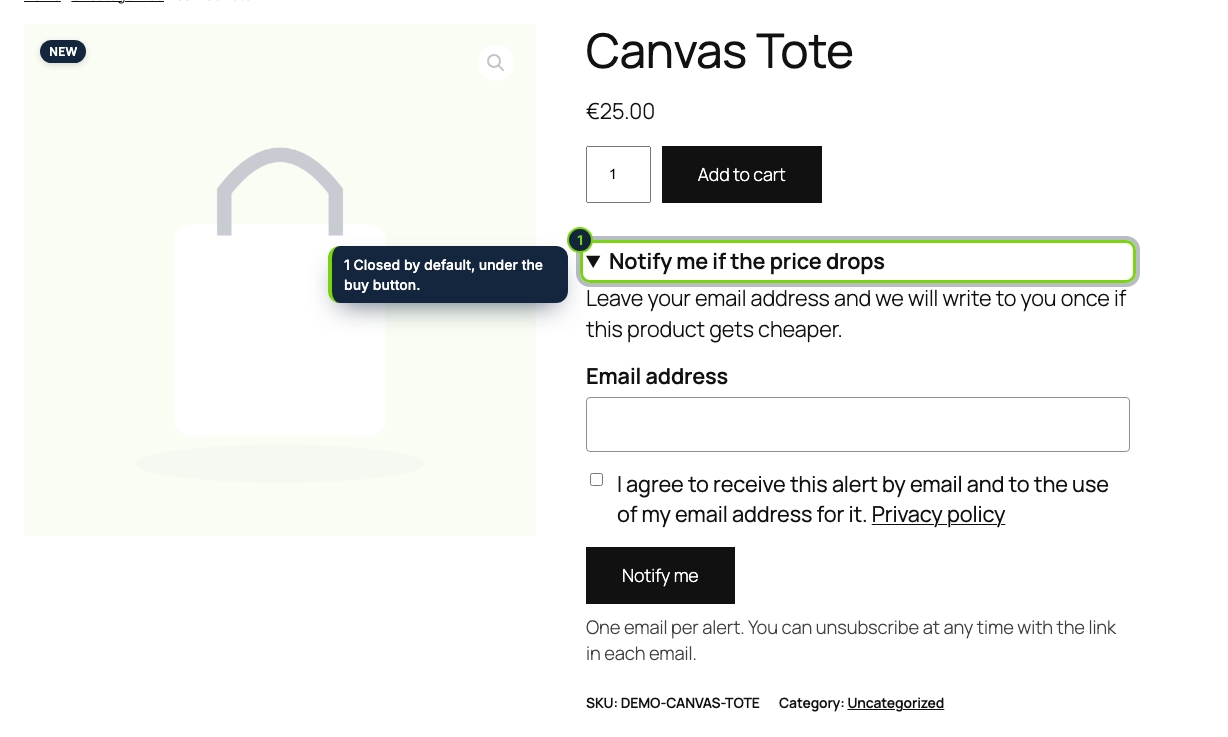
- Shows inside the Add to Cart Form block of block themes and after the single product summary in classic themes
- On variable products, shoppers pick the sold-out variation they want from a list
- A WooCommerce › Stock alerts screen in wp-admin, plus a settings section under WooCommerce › Settings › Products
- Hourly WP-Cron check for scheduled sales and expired alerts, on top of instant checks after orders, refunds, REST API calls and imports
- Registered with the WordPress personal data exporter and eraser, with a suggested privacy policy paragraph
When a simple product or one variation hits zero stock, WooCommerce just shows “Out of stock” and the shopper moves on. Back in Stock & Price Drop Alerts adds an email sign-up under the purchase area and sends exactly one message when that product can be bought again, or, for in-stock items, when its price goes down.
How it fits into WooCommerce
- Storefront
- In block themes like Twenty Twenty-Five the form is appended to the Add to Cart Form block; in
classic themes it hooks into
woocommerce_single_product_summary. Variable products get a list of their sold-out variations; the price-drop option tracks the product’s lowest price. - Emails
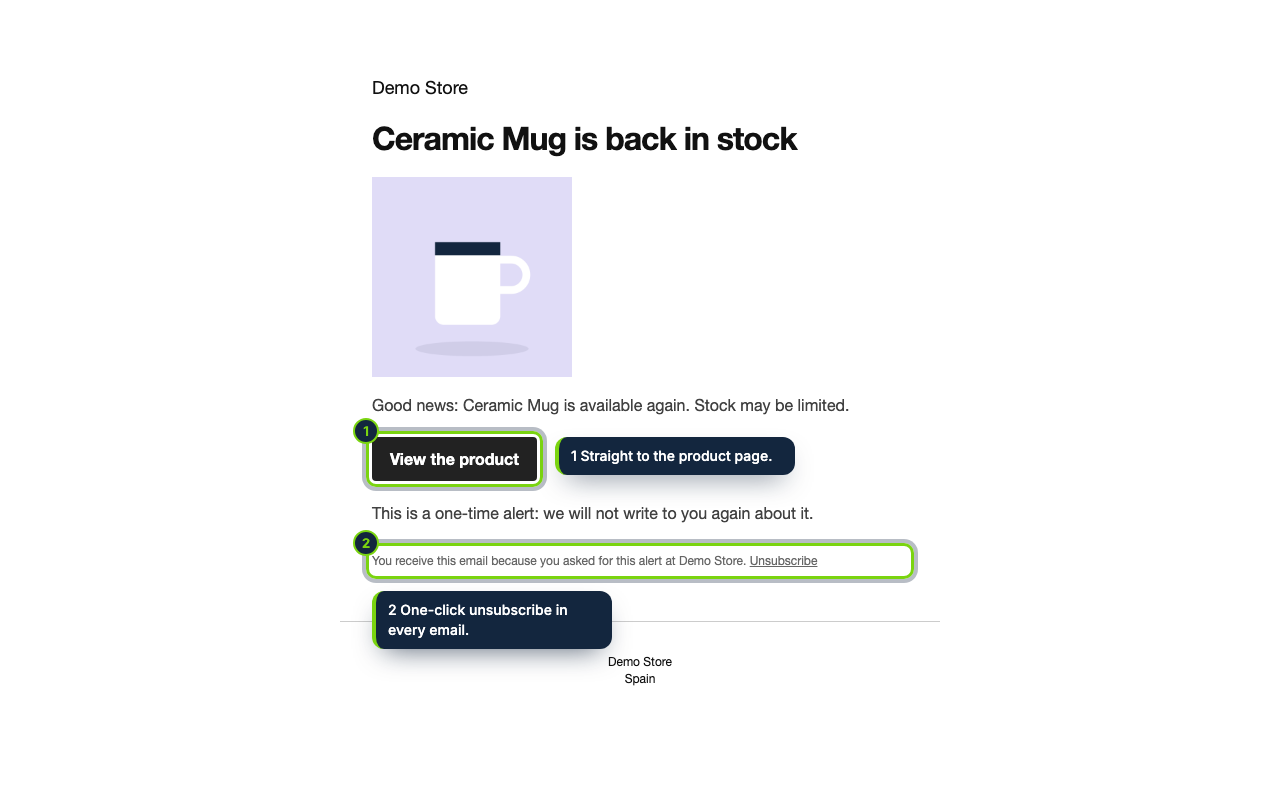
- Confirmation and alert messages go through the WooCommerce mailer, in your email layout. The alert carries the product picture and a buy button; both include an unsubscribe link.
- wp-admin
- WooCommerce › Stock alerts (for users with the manage_woocommerce capability) shows the most awaited sold-out products and every alert by status. Options are under WooCommerce › Settings › Products › Stock alerts: which alerts to offer, double opt-in, minimum price drop and how many days to keep alerts (180 by default).
- Timing
- Stock and price changes are checked at the end of the request that made them. An hourly WP-Cron event
sweeps every active alert; on quiet sites, point a real cron job at
wp-cron.php. - Requirements
- WooCommerce 11.x, WordPress 7.0 or newer, PHP 8.1 or newer. HPOS compatibility is declared.
Installation
- Step 1
Grab the zip from My account › Downloads on ecom-addons.com.
- Step 2
In wp-admin, open Plugins › Add New Plugin › Upload Plugin and upload it.
- Step 3
Click Install Now, then Activate.
- Step 4
Publish a privacy policy page under Settings › Privacy so the consent checkbox can link to it.
FAQ
How do I answer a GDPR access or erasure request?
Use Tools › Export Personal Data or Tools › Erase Personal Data: alerts are included. The plugin also proposes text for your policy. This is not legal advice.
Does it work with HPOS?
Yes, compatibility with the custom order tables is declared.
What happens when I delete the plugin?
All stored alerts are removed with it.
Version history
- Loading…
Reviews
Loading…
Bought it? Leave a review from your account.