Aura
Build your shop with Aura
The theme, its 5 modules and the Studio. One price, every new version and 6 months of support included.
Choose a layout, place each block on the map and style the buy button.
A product page with the layout you chose, every block in its place and a buy button in your style.
Step 1
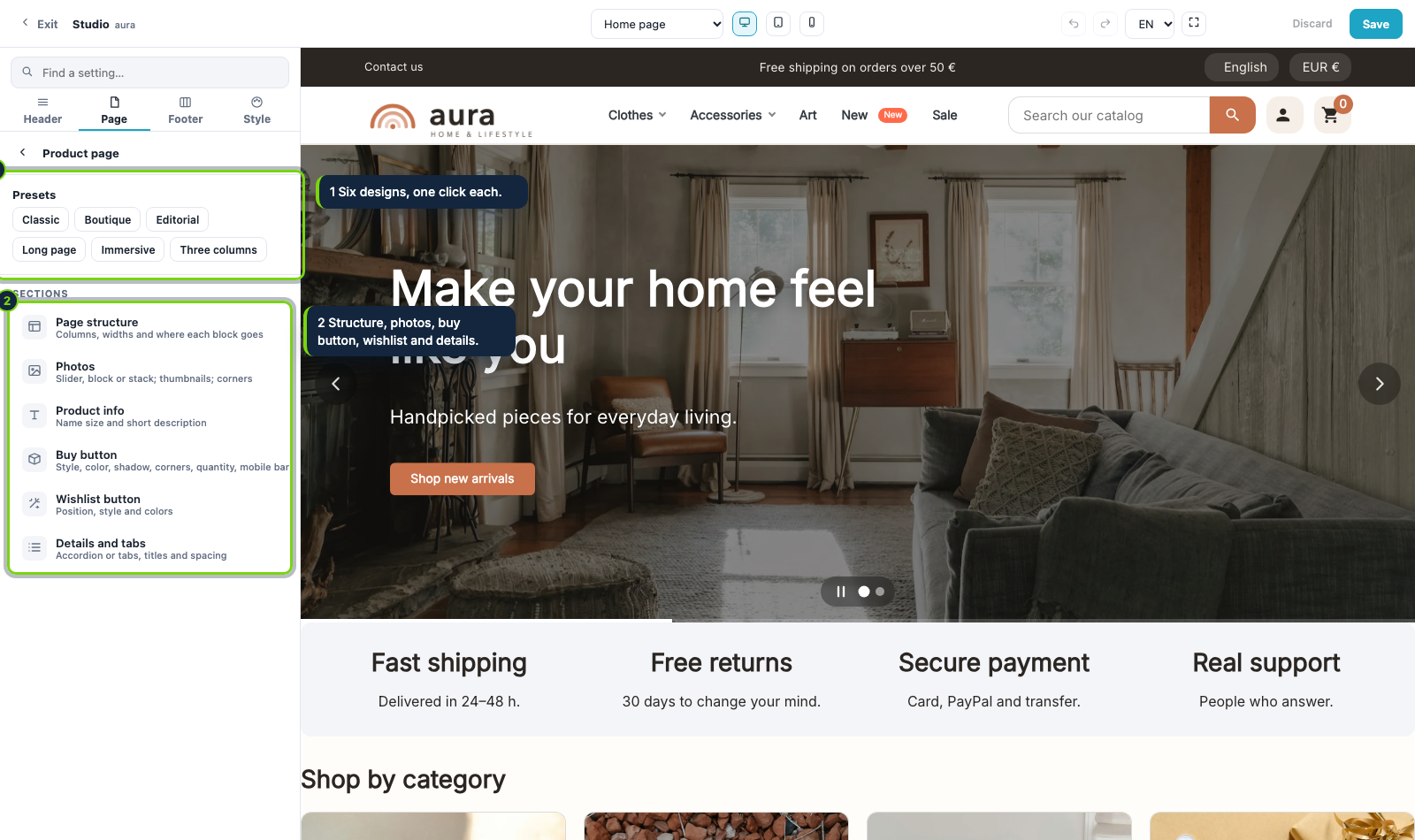
The product page is a menu of sections. At the top you have six ready-made designs: classic, boutique, editorial, long page, immersive and three columns. Click one to start.
Step 2
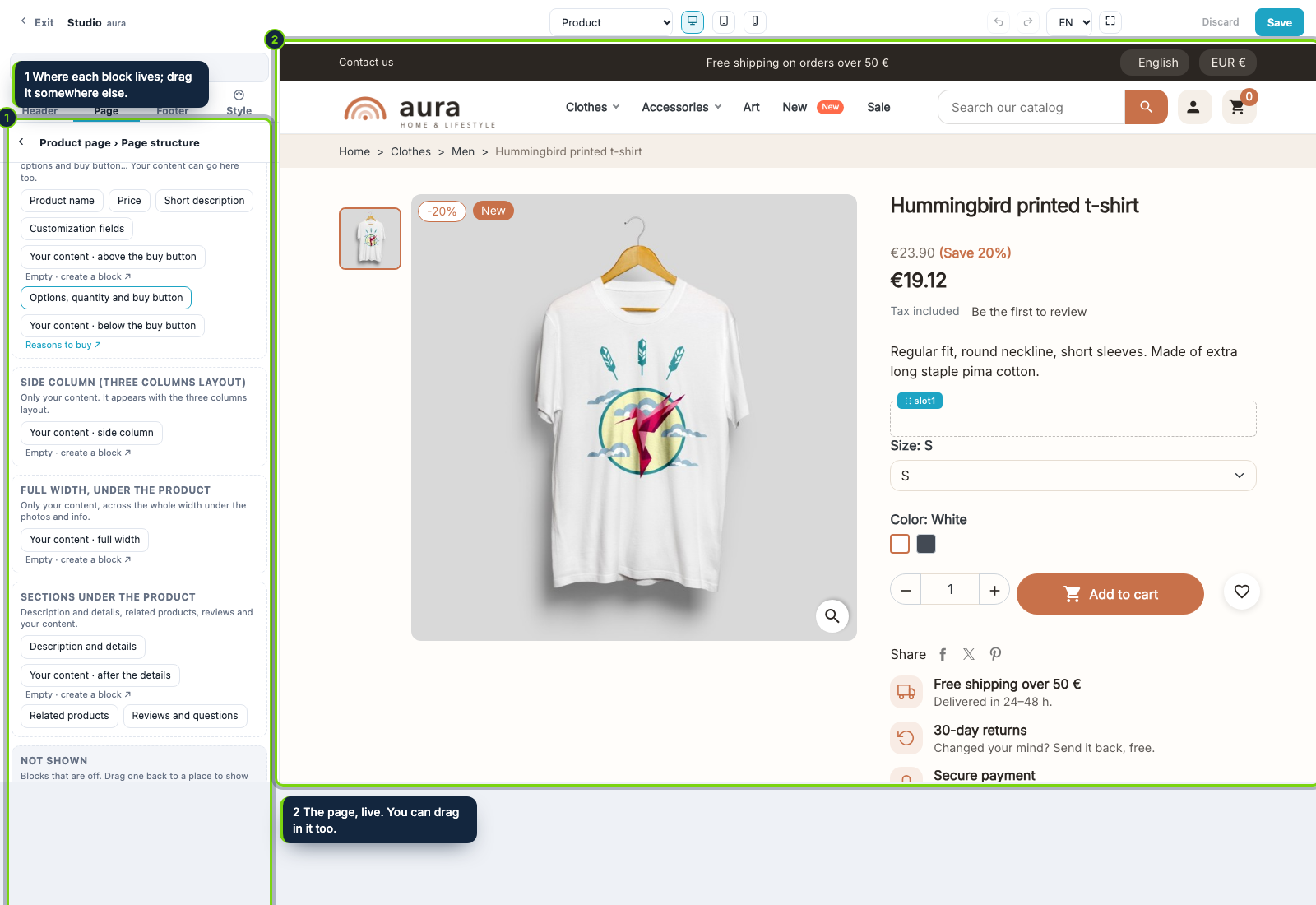
Here you choose the layout (gallery left or right, three columns, one column or a wide photo on top) and, below it, the map of the page. The preview switches to a product.
Step 3
The map shows the info column, the side column, the full-width row and the sections under the product. Drag a block to another place, in the map or in the preview; empty places show a dashed frame.
Step 4
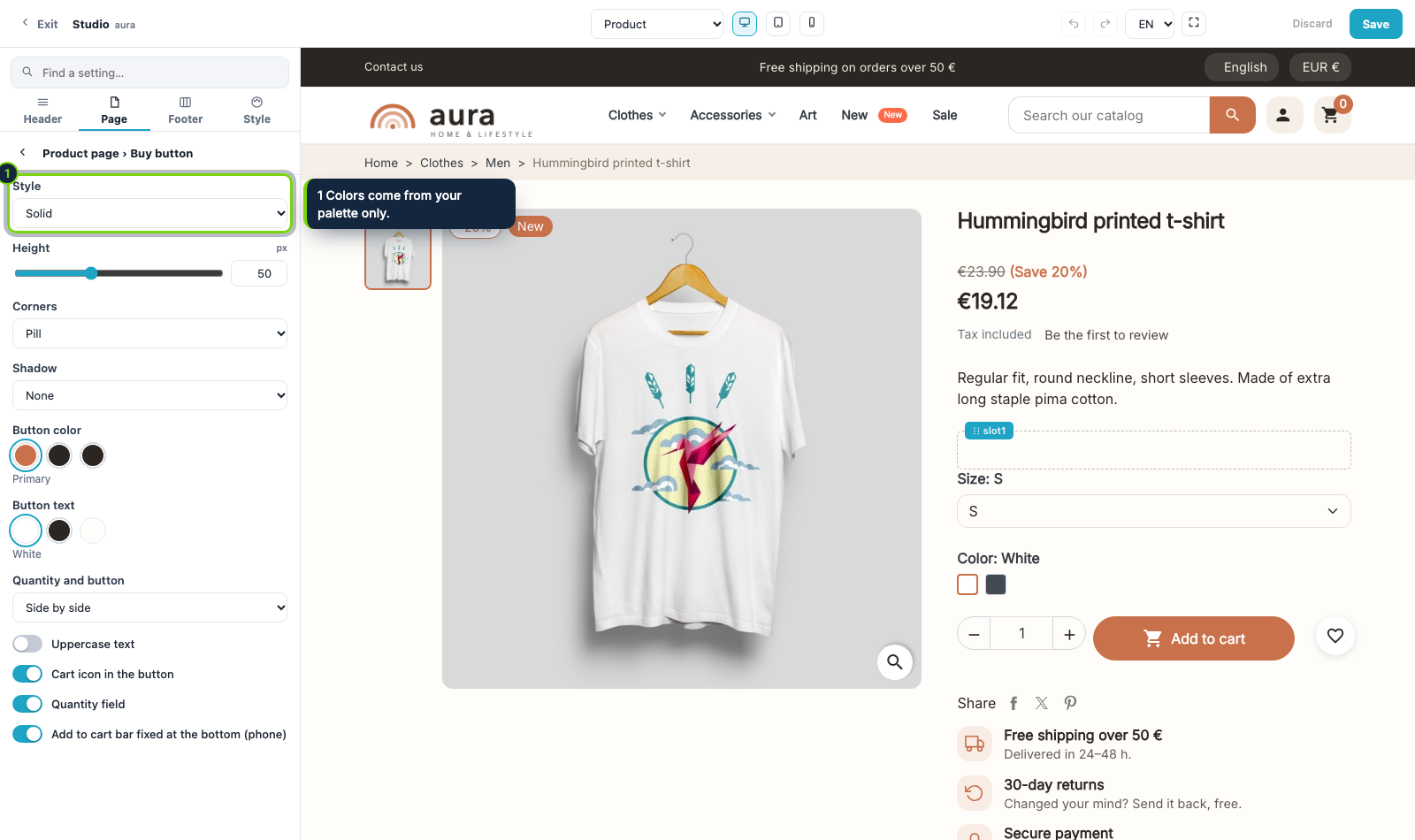
Back in the product page menu open Buy button: solid, outline or soft style, height, corners, shadow, color from the palette, the quantity field and a bar fixed at the bottom on phones.
Step 5
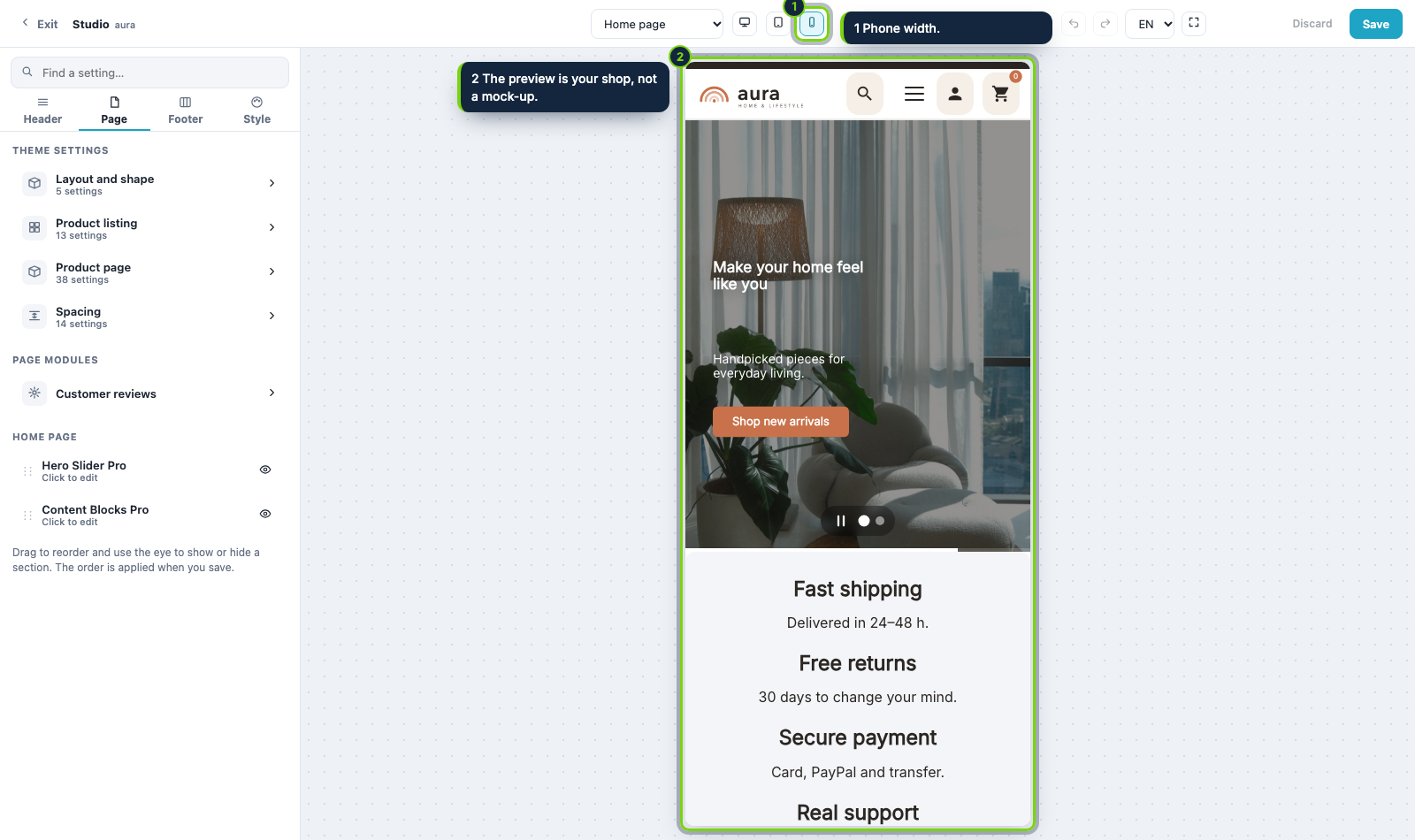
Check the page on a phone, then press Save. The saved values reach the shop as one small inline style.
Aura
The theme, its 5 modules and the Studio. One price, every new version and 6 months of support included.
Start from a palette preset, adjust your main color and see the whole shop follow before you save.
Put the logo, menu, search, account and cart where you want them, on computer and on phone.
Use a Your content slot and Content Blocks Pro to show shipping, returns and payment next to the buy button.
Export the look of a finished shop in one zip and import it in another shop.