Aura
Build your shop with Aura
The theme, its 5 modules and the Studio. One price, every new version and 6 months of support included.
Use a Your content slot and Content Blocks Pro to show shipping, returns and payment next to the buy button.
A row of reasons to buy under the buy button, edited from Content Blocks, without touching a template.
Step 1
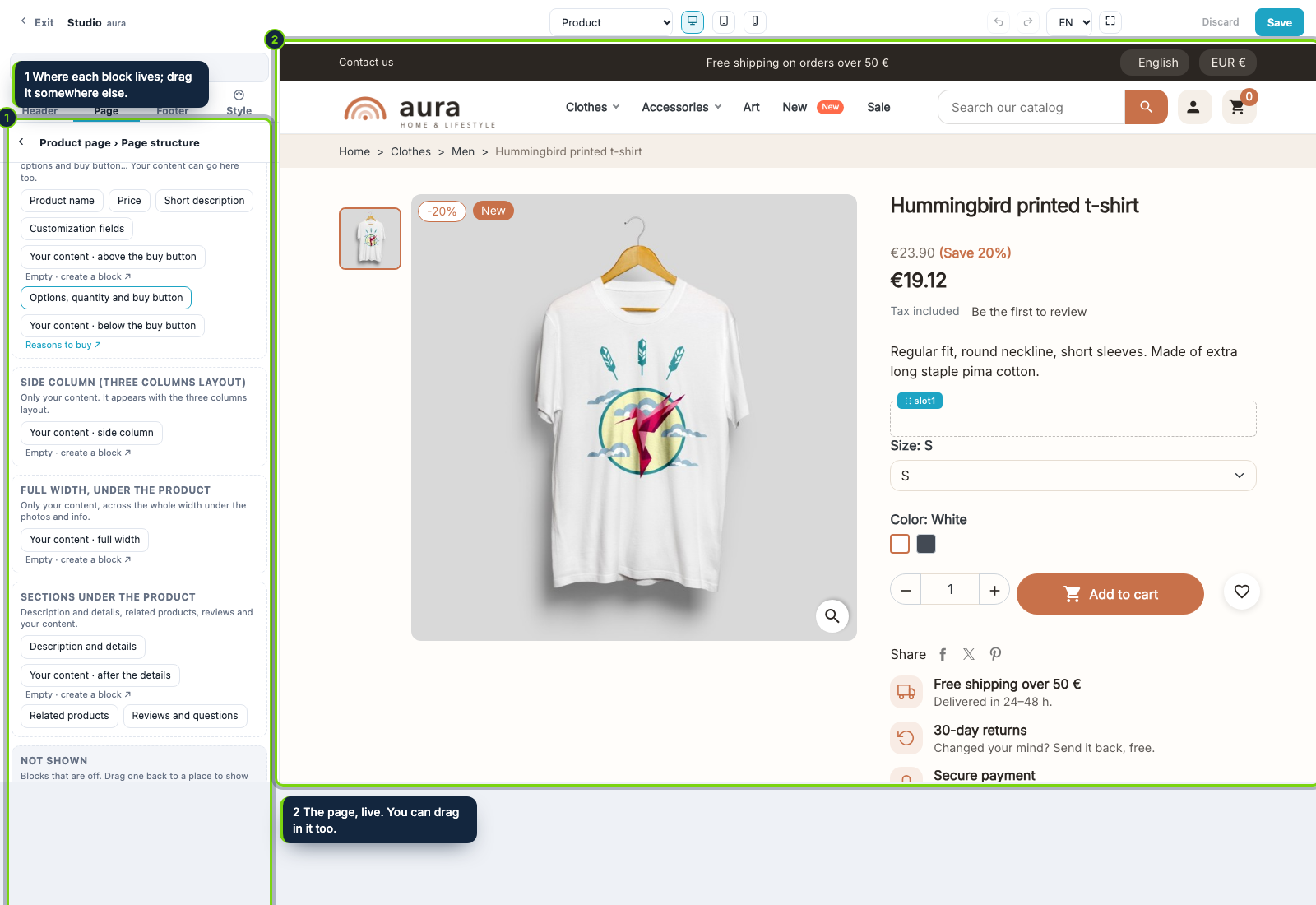
In Page › Product page › Page structure look for the Your content slots: above or below the buy button, in the side column, full width and after the details.
Step 2
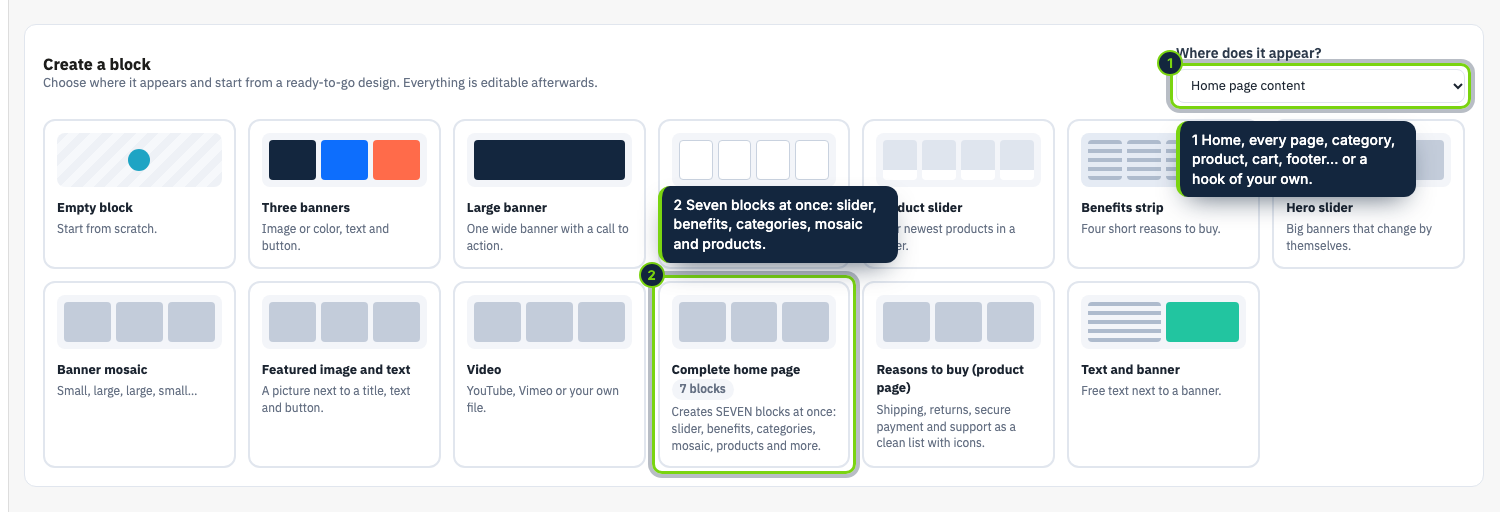
A slot without blocks offers a link to create one. It opens Content Blocks, where you choose where the block appears and a design to start from.
Step 3
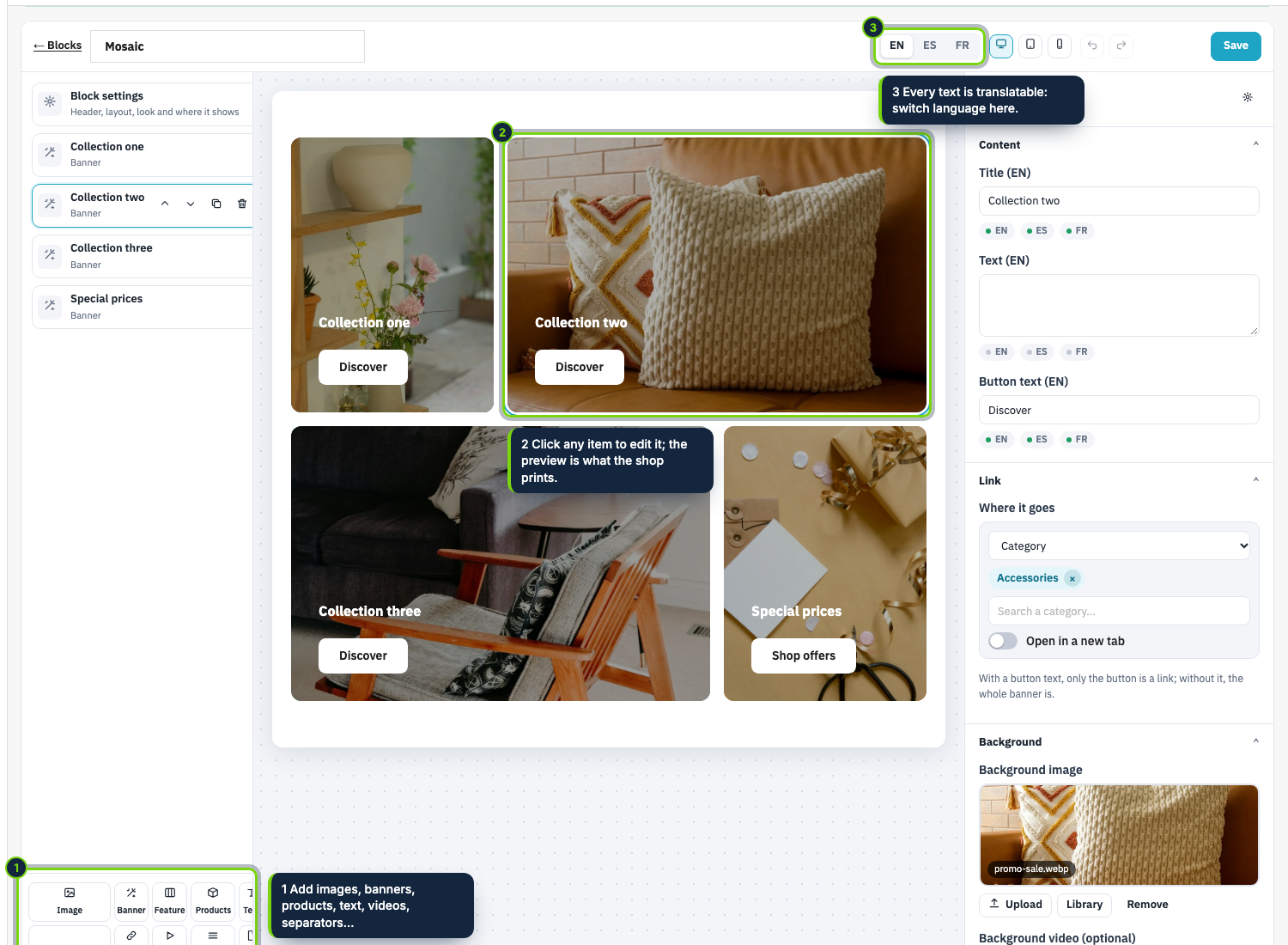
In the editor the items are on the left, the live block in the middle (click an item to edit it) and its settings on the right. Write one perk per item: shipping, returns, payment, support.
Step 4
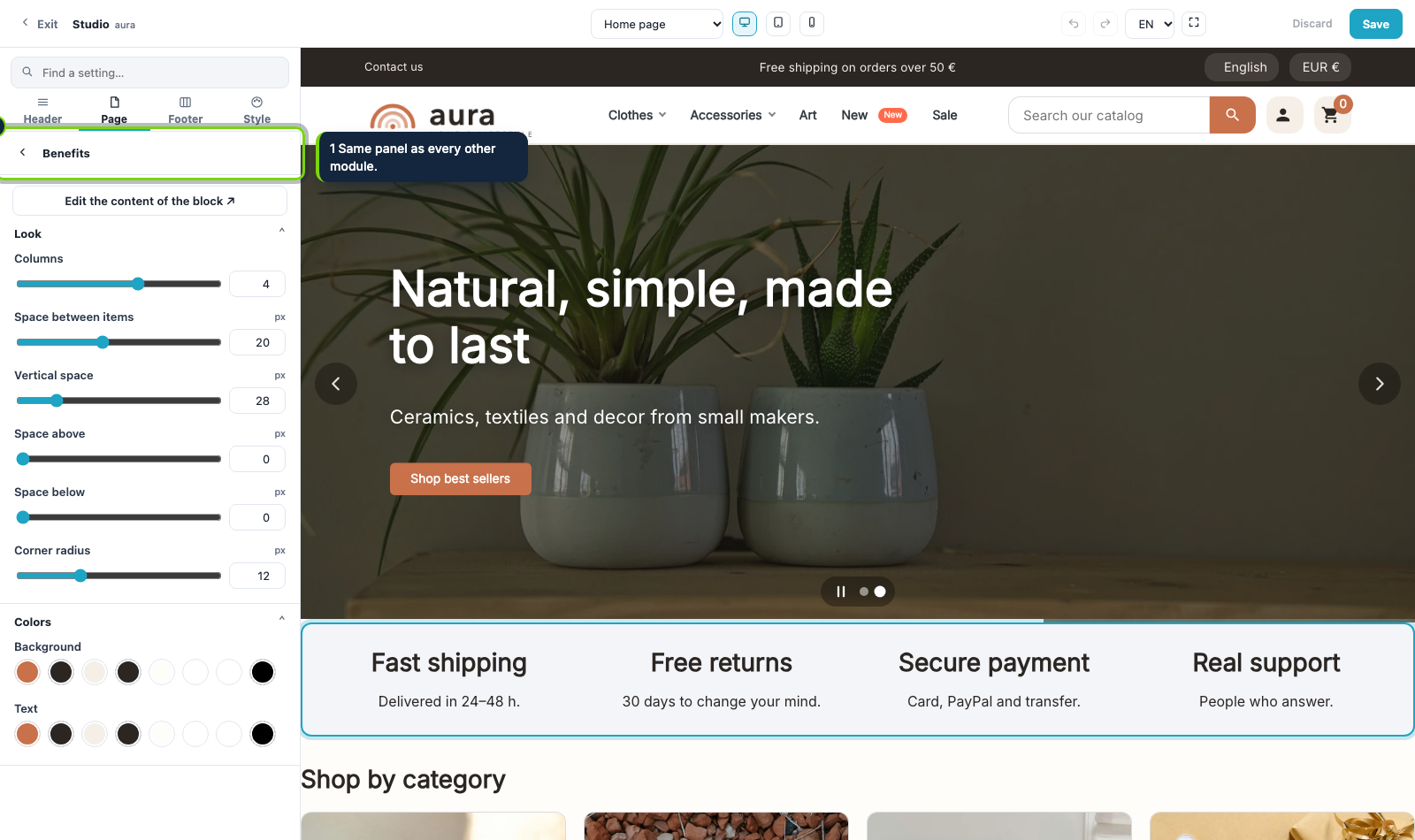
Reload the preview: the block shows in its slot. If you prefer another place, drag it on the map of the product page.
Aura
The theme, its 5 modules and the Studio. One price, every new version and 6 months of support included.
Start from a palette preset, adjust your main color and see the whole shop follow before you save.
Put the logo, menu, search, account and cart where you want them, on computer and on phone.
Choose a layout, place each block on the map and style the buy button.
Export the look of a finished shop in one zip and import it in another shop.