Aura
Build your shop with Aura
The theme, its 5 modules and the Studio. One price, every new version and 6 months of support included.
Start from a palette preset, adjust your main color and see the whole shop follow before you save.
Your brand colors on buttons, links, menu, footer and sections, without touching a template.
Step 1
Go to Modules › Module Manager › Theme Editor › Configure and click Open the Studio. It opens in its own tab with your shop on the right.
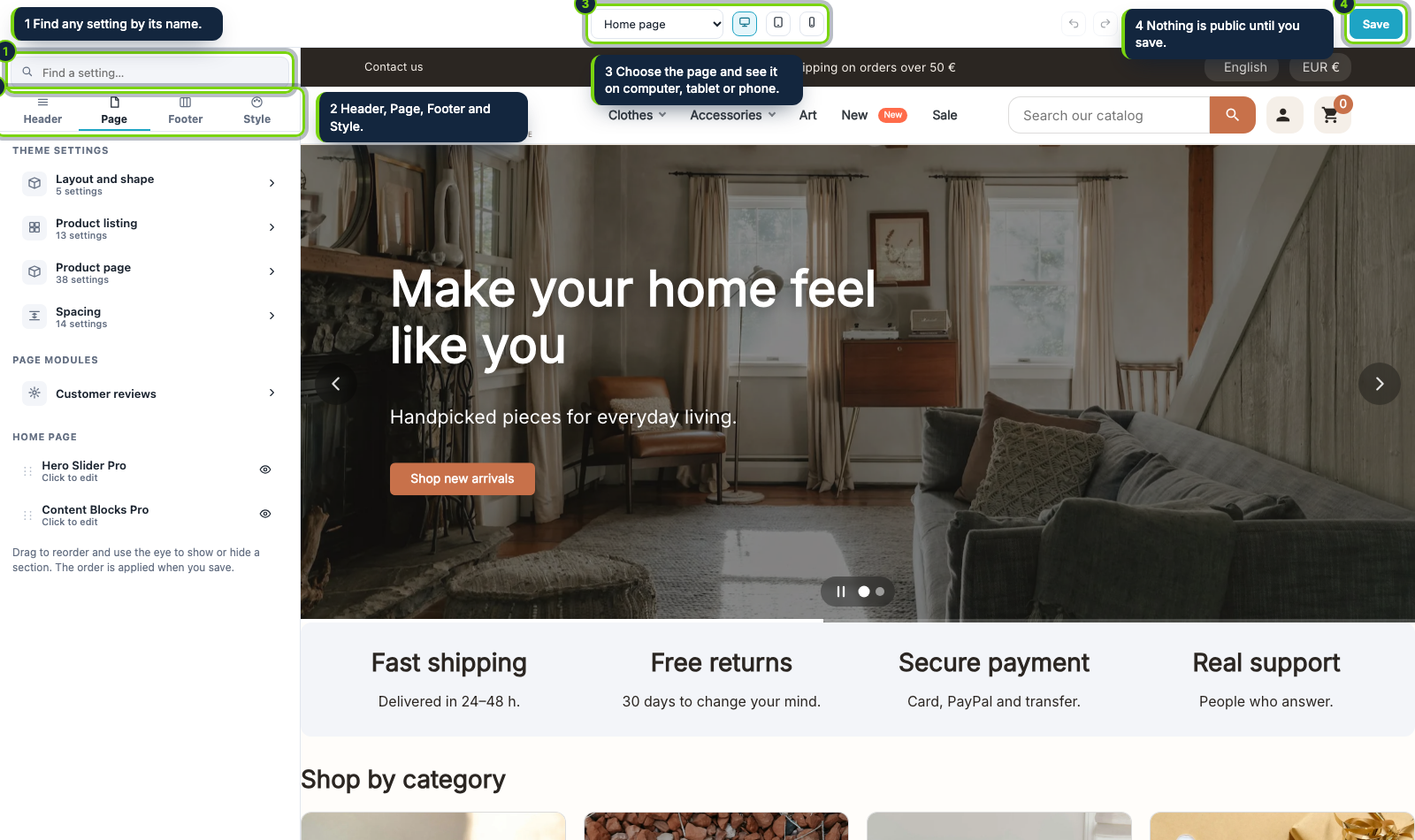
Step 2
Open the Style area and choose Colors. This is the palette of the shop: main color, its hover, links, text and the backgrounds.
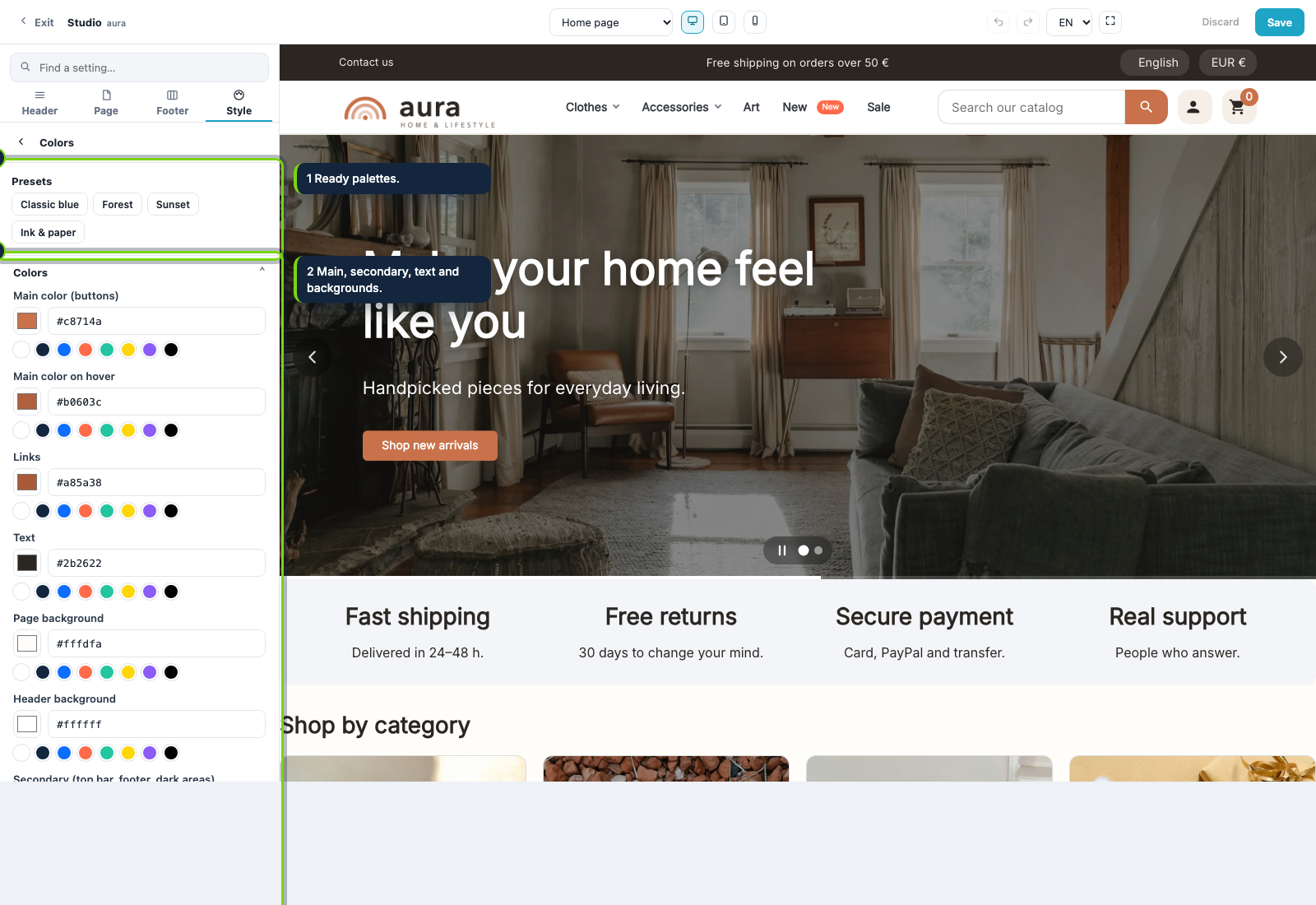
Step 3
Click Classic blue, Forest, Sunset or Ink & paper. The preview repaints at once: buttons, menu, search, footer and sections change together.
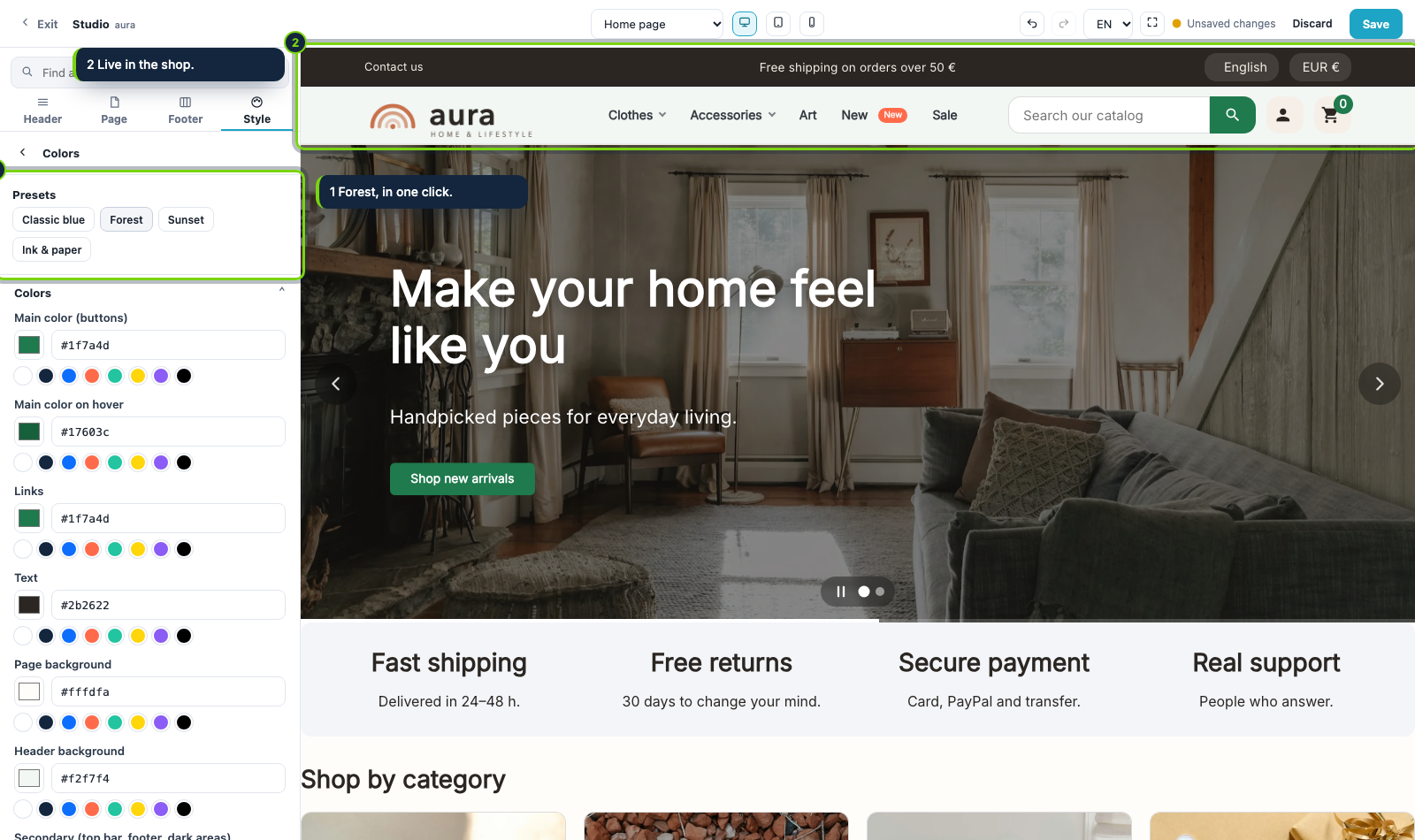
Step 4
Change Main color (buttons) with the picker, by typing its hex code or by choosing one of the swatches below it. Everything that uses it follows.
Step 5
Click the phone icon to see the shop on a mobile, then press Save. Until then nothing is public; Discard throws the draft away.
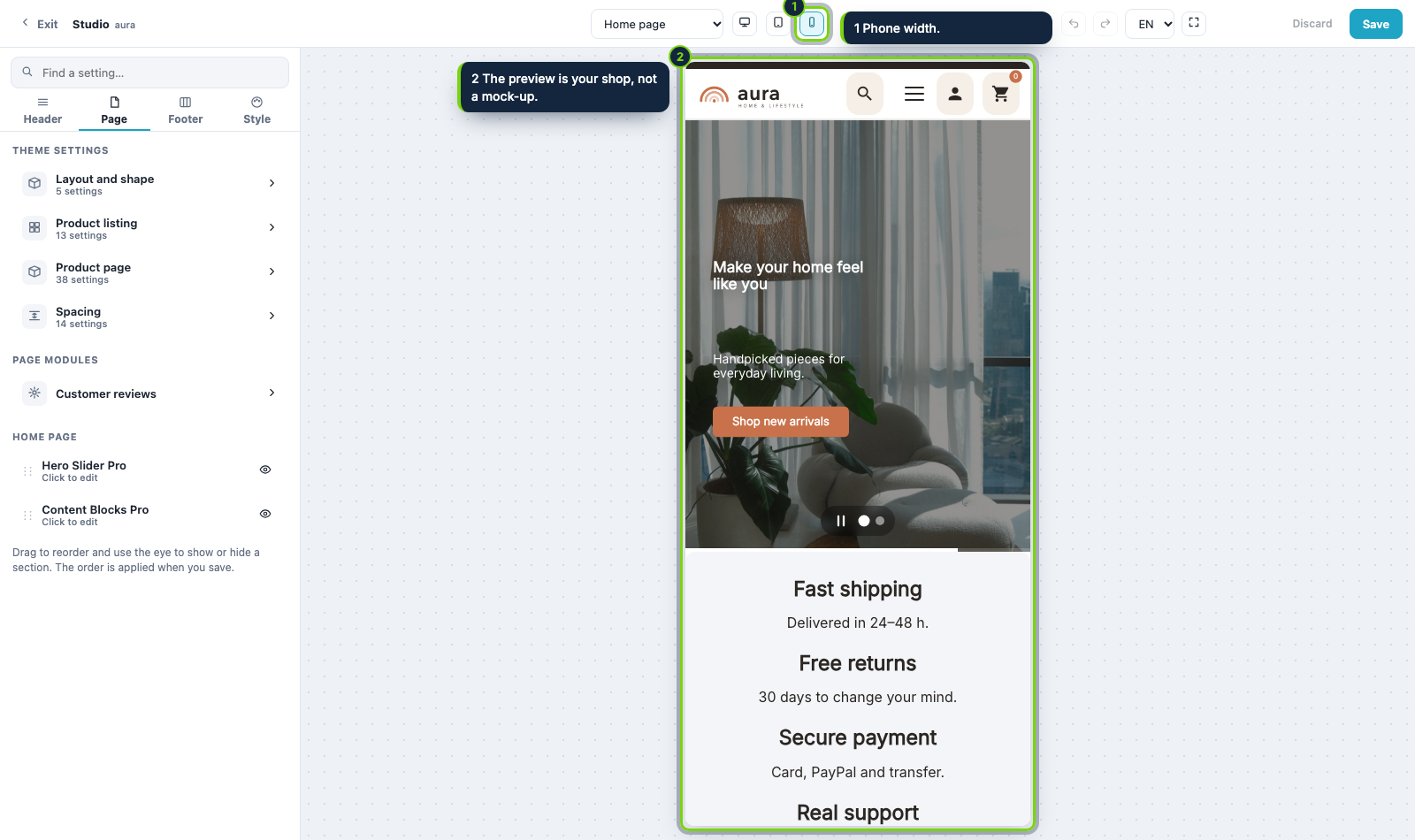
Aura
The theme, its 5 modules and the Studio. One price, every new version and 6 months of support included.
Put the logo, menu, search, account and cart where you want them, on computer and on phone.
Choose a layout, place each block on the map and style the buy button.
Use a Your content slot and Content Blocks Pro to show shipping, returns and payment next to the buy button.
Export the look of a finished shop in one zip and import it in another shop.