

Features
- Adds a Miravia tab to WooCommerce › Settings with the connection, the rules and the result of the last sync
- Listens to woocommerce_product_set_stock and woocommerce_update_product, so stock and price edits reach Miravia at once
- Daily catalogue resync scheduled with WP-Cron, plus a Sync now button
- Brands taken from the WooCommerce Brands taxonomy; the WooCommerce SKU becomes the Miravia seller SKU
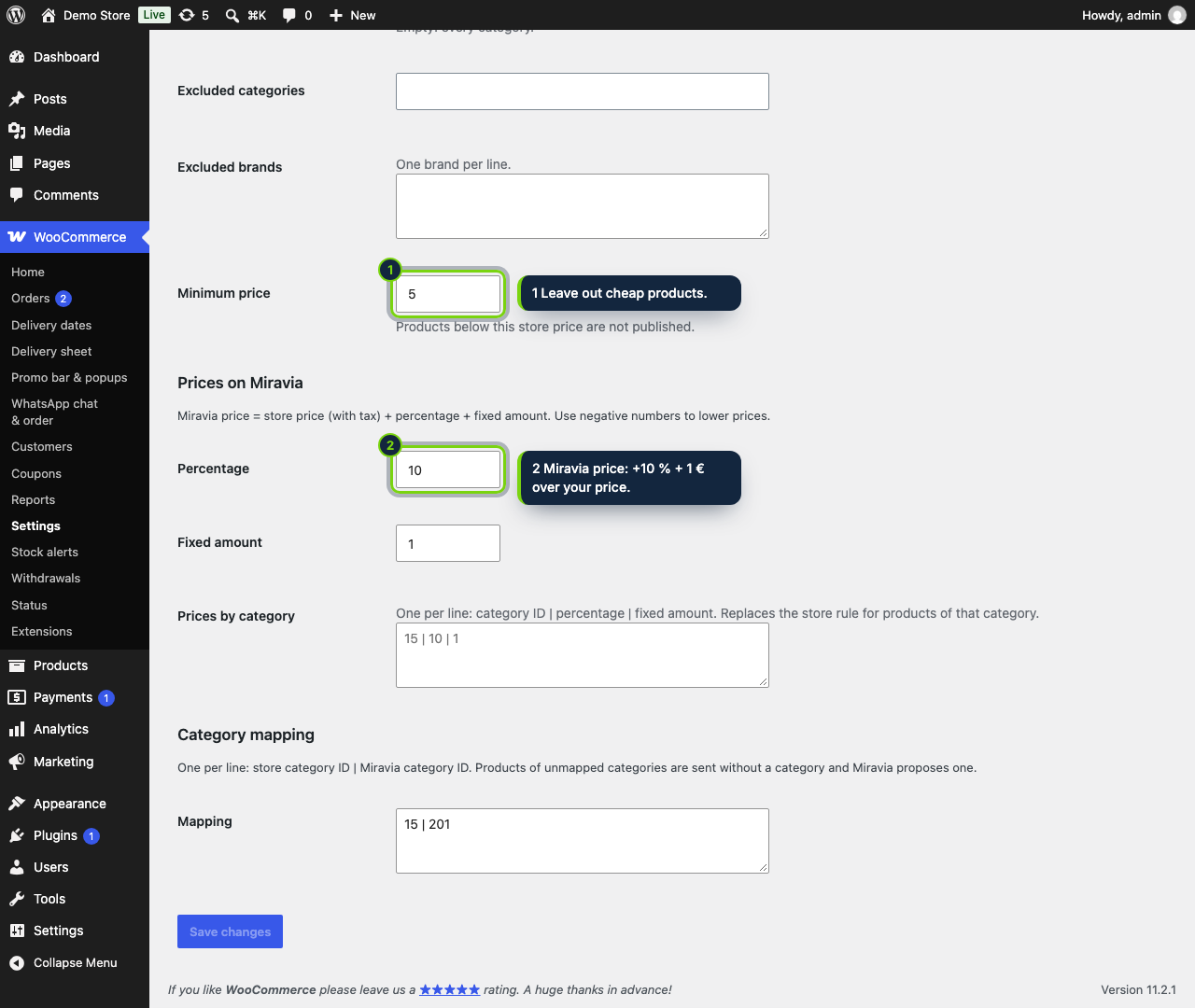
- Filter by product category, brand or minimum price, and set a markup (percentage + fixed) per category
- Declared compatible with HPOS; your own Miravia Open Platform keys, no middleman
If your catalogue lives in WooCommerce, adding Miravia as a second channel should not mean retyping products in the seller centre. This plugin takes the products you select, with their SKU, images, brand and a price derived from yours, sends them to Miravia and keeps them in step with the store.
How it fits into WooCommerce
- Needs WooCommerce 11.x on WordPress 7.0+ and PHP 8.1+. It declares compatibility with High-Performance Order Storage.
- Configuration is a new Miravia tab in WooCommerce › Settings, available to users who can manage WooCommerce. Test connection and Sync now report back through the usual wp-admin notices.
- Updates are triggered by
woocommerce_product_set_stockandwoocommerce_update_product, so a quick edit or a stock change after an order is pushed right away. A WP-Cron event re-sends the whole catalogue once a day and deactivates on Miravia what no longer passes your rules. - Brand comes from the
product_brandtaxonomy (WooCommerce Brands). Products that do not manage stock are sent with 10 units while they are in stock. - Version 1.0 handles simple products. Variable products, order import, tracking numbers and labels are planned.
Installation
- Step 1
Download the zip from My account › Downloads on ecom-addons.com.
- Step 2
In wp-admin, open Plugins › Add New Plugin › Upload Plugin, pick the zip, click Install Now, then Activate.
- Step 3
In the Miravia Open Platform console, create an app, authorise it with your seller account and copy the app key, app secret and access token into WooCommerce › Settings › Miravia. Save and test the connection.
- Step 4
Choose what to publish and click Sync now.
FAQ
Are variable products supported?
Not in 1.0: only simple products with an SKU are sent. The settings tab shows which products were skipped and the reason.
Do I need a real cron job?
The daily resync uses WP-Cron, which runs when the site gets visits. On a quiet
site, call wp-cron.php from your server so it fires on time.
Where do brands come from?
From WooCommerce Brands. Without that taxonomy, products go out with no brand and you cannot filter by it.
Version history
- Loading…
Reviews
Loading…