Features
- Hooks actionUpdateQuantity and actionProductUpdate: a quantity or price edit in the back office reaches Miravia straight away
- Pick the categories to publish or exclude from your PrestaShop category list, and exclude manufacturers by name
- Product reference becomes the Miravia seller SKU, so listings you already have there are updated, not doubled
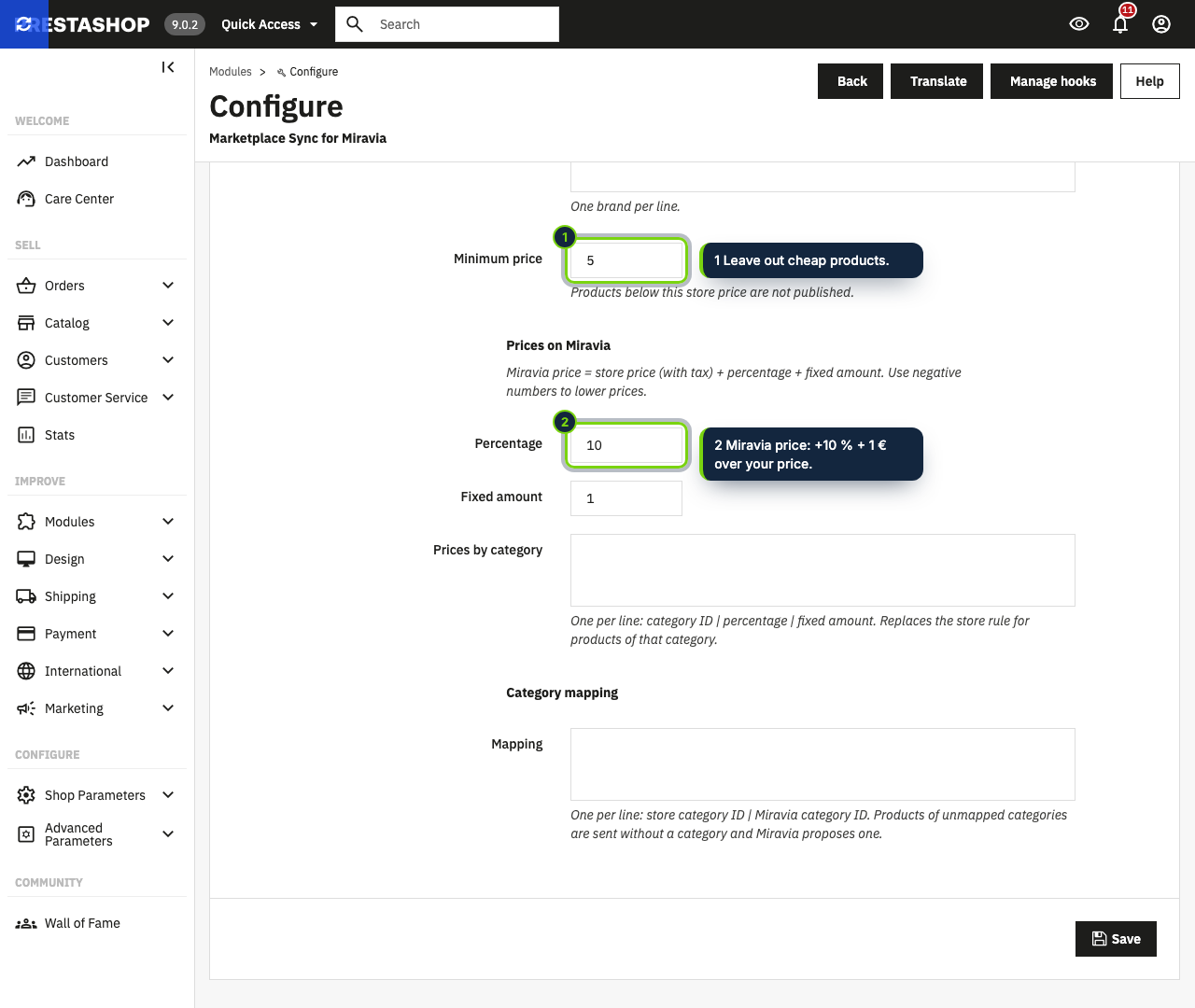
- Marketplace price = shop price with tax + a percentage + a fixed amount, with an override per category ID
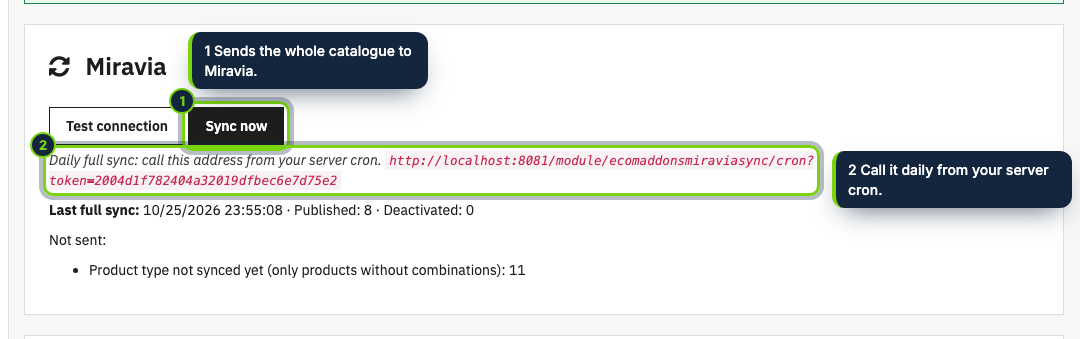
- Daily full sync through a tokenised cron URL you call from your server
- Connects with your own Miravia Open Platform app: no middleman, no commission on top
For a PrestaShop merchant, opening a Miravia store usually means copying products by hand and fixing stock in two places. This module sends the products you choose, with up to 8 images, the manufacturer as brand and a price calculated from your own, and then follows every change you make in the back office.
How it fits into PrestaShop
- Made for PrestaShop 8.2 and 9.0 and PHP 8.1 or later. Everything is on one page: Modules › Module Manager › Marketplace Sync for Miravia › Configure (connection keys, Test connection, publishing rules, prices, category mapping, Sync now and the report of the last full sync).
- The category selectors list your PrestaShop categories with their ID; subcategories follow their parent. Brands are your manufacturers.
- It registers
actionUpdateQuantityandactionProductUpdate, so saving a product or changing its quantity updates Miravia without waiting for a full sync. - A front controller exposes a cron address with a secret token. Call it once a day (for example
0 4 * * * curl -s "<address>") to re-send the catalogue and deactivate on Miravia what no longer passes your rules. - Version 1.0 sends products without combinations only; combinations, order import, tracking numbers and shipping labels are planned.
Installation
- Step 1
Download the zip from My account › Downloads on ecom-addons.com.
- Step 2
In the back office, go to Modules › Module Manager, click Upload a module and choose the zip.
- Step 3
Create an app in the Miravia Open Platform console, authorise it with your seller account and paste the app key, app secret and access token into Configure. Save and click Test connection.
- Step 4
Set your rules, then press Sync now.
FAQ
Are products with combinations published?
Not yet: only products without combinations and with a reference are sent. The last sync report lists what was skipped and why.
Which field is used as SKU on Miravia?
The product reference. A product with the same reference already on Miravia is updated instead of created again.
Does it run on its own every night?
Only if you schedule the cron URL shown in the configuration; stock and price changes are pushed at once either way.
Version history
- Loading…
Reviews
Loading…