

Features

  • “Size guide” link in displayProductAdditionalInfo of the Classic theme, redrawn by PrestaShop on every combination change and identical for every visitor, so full-page caches keep working
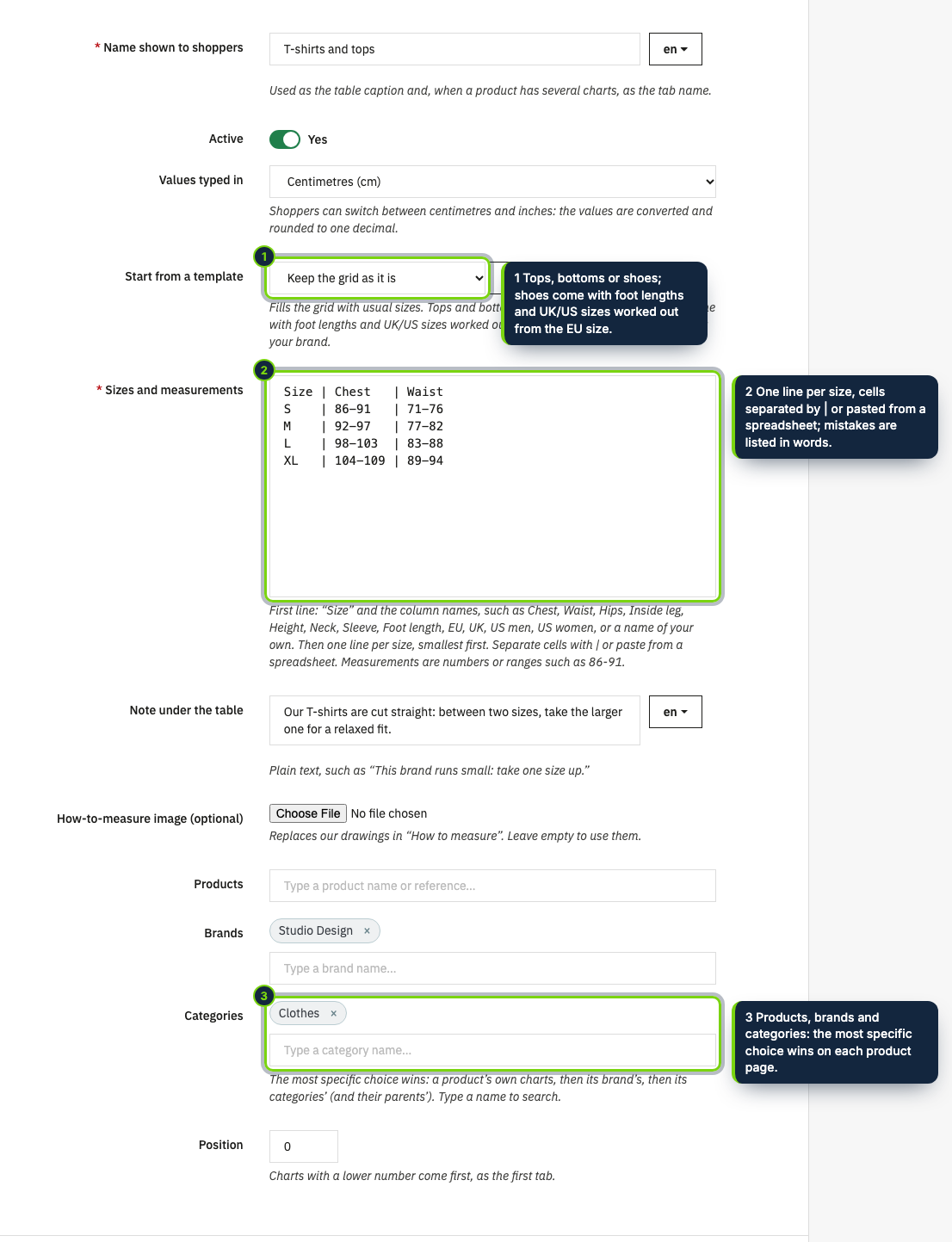
  • Catalog › Size charts menu entry in the back office: one text grid per chart (type it or paste it from a spreadsheet), name and note in every shop language, values in cm or inches
  • Charts attached to products, manufacturers and categories with search boxes instead of typed IDs; a product’s own chart beats its manufacturer’s, which beats its categories’ and their parents’
  • A Modules tab on the product page of PrestaShop 8 and 9 telling which chart that product shows and why
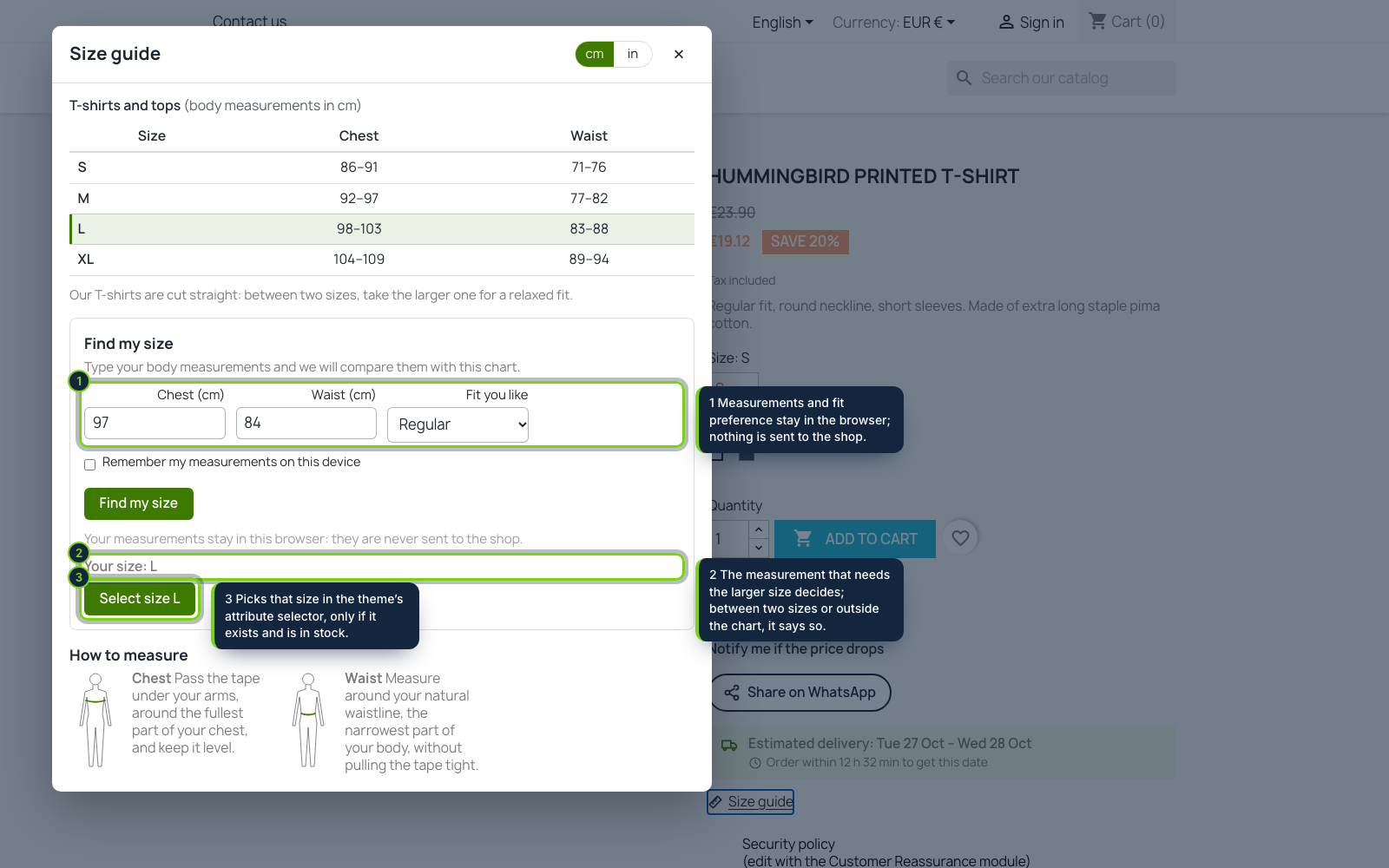
  • Fit finder in the shopper’s browser: closer, regular or looser fit, an honest “you are between S and M” and “outside this chart” instead of a forced size
  • One click selects the suggested value in the group[ ] select or radio buttons of the attribute group you choose (Size, Talla and Taille are detected), only when a combination with it is in stock
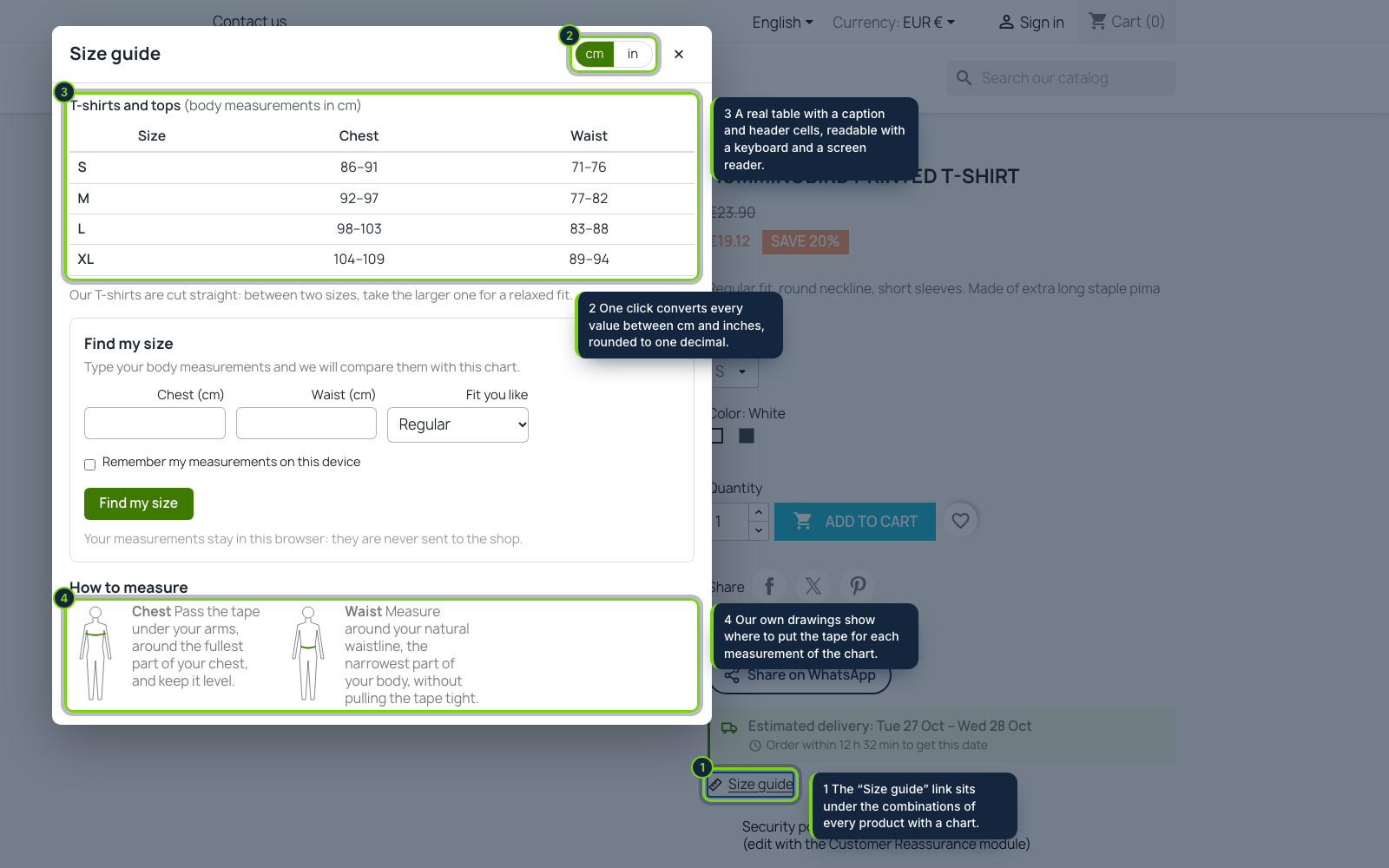
  • Accessible native dialog closed with Esc, real table with caption and header cells, cm/in switch, how-to-measure drawings of our own or your uploaded image
  • Starter grids for tops, bottoms and shoes (EU, UK and US shoe sizes worked out from the foot length); no override, English, Spanish and French included

Returns for the wrong size eat the margin of every clothing and footwear shop, and a PrestaShop product sheet only offers a bare Size drop-down: nothing says what “M” means for this brand. Size Guide & Fit Finder puts your measurements next to that drop-down and helps each shopper choose before they add to cart.

You write a chart once, as a small grid of sizes and body measurements, and attach it to the products, manufacturers or categories it fits. On the product sheet, a Size guide link opens a dialog with the table in centimetres or inches, your note (“this brand runs small”) and how to measure. The shopper can type their chest, waist or foot length, choose a closer or looser fit, and get a size, or an honest “you are between two sizes”. Select size M then picks that value in the combination list, if it is in stock.

How it fits into PrestaShop

Back office
Catalog › Size charts opens the module page with the list of charts, the chart form and the settings. Products, manufacturers and categories are chosen with search boxes. The product page shows, in its Modules tab, which chart the product gets.
Product sheet
The block is printed through the displayProductAdditionalInfo hook. PrestaShop redraws that area whenever a combination changes and the script picks it up again. It selects the size through the theme’s own group[…] attribute inputs, so the price, stock, images and URL of the combination are refreshed by PrestaShop itself. No override, no theme file to edit.
Caching
The HTML is the same for every visitor; the fit finder works in the browser, so page caches and Varnish-style setups keep serving the same page.
Versions
PrestaShop 8.2 and 9.0 with PHP 8.1 or later, tested with the Classic theme.

Installation

  1. Step 1

    Download the zip from My account › Downloads on ecom-addons.com.

  2. Step 2

    In Modules › Module Manager, click Upload a module and drop the zip.

  3. Step 3

    Open Catalog › Size charts, add a chart (or start from a template) and attach it to a category.

Download the step-by-step guide (PDF)

FAQ

Does it work with my combinations?

It reads the attribute group that holds the size (detected from names such as Size, Talla or Taille, or chosen in the settings) and matches the chart’s sizes to its values by name.

What happens with sizes out of stock?

The guide still shows them, but the button refuses to select a size with no combination in stock and says so (unless the product accepts orders when out of stock).

Are customers’ measurements stored?

No. They stay in the browser; if the shopper ticks “remember my measurements”, they are kept in that browser’s local storage only.

Can I keep my charts if I uninstall?

Yes, switch on “Keep the charts” in the settings first.

Version history

  1. Loading…

Reviews

Loading…