
Features
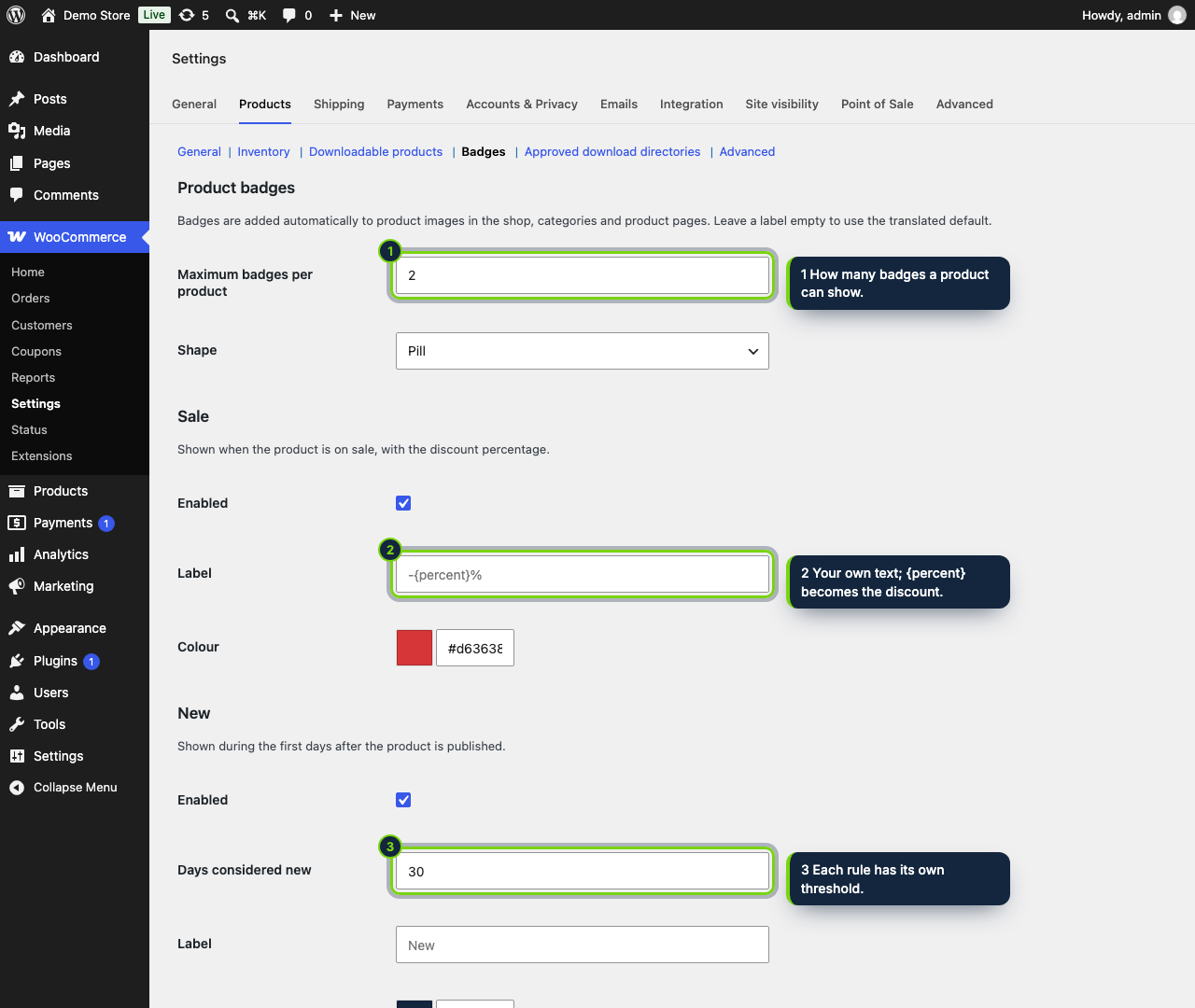
- Settings live in WooCommerce › Settings › Products › Badges, next to your other catalog options
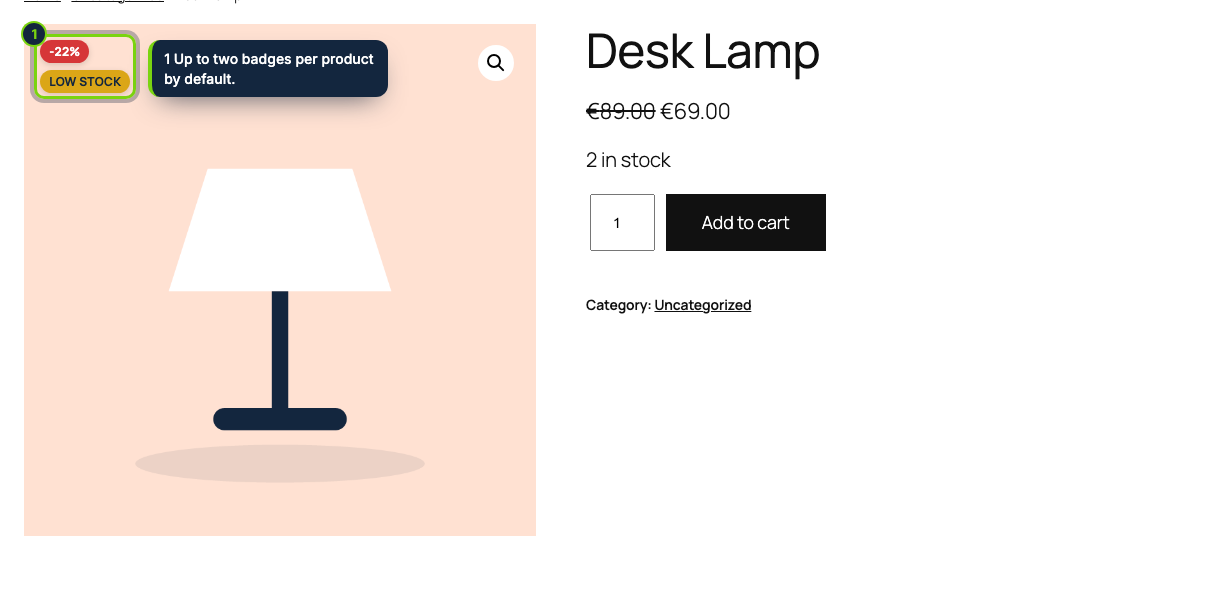
- Block themes get badges inside the Product Image, Product Image Gallery and Product Gallery blocks; classic themes through the shop loop and single product hooks
- Variable products show the deepest discount found among their variations
- Takes over from the default sale flash and the Product Sale Badge block, so a product never shows two
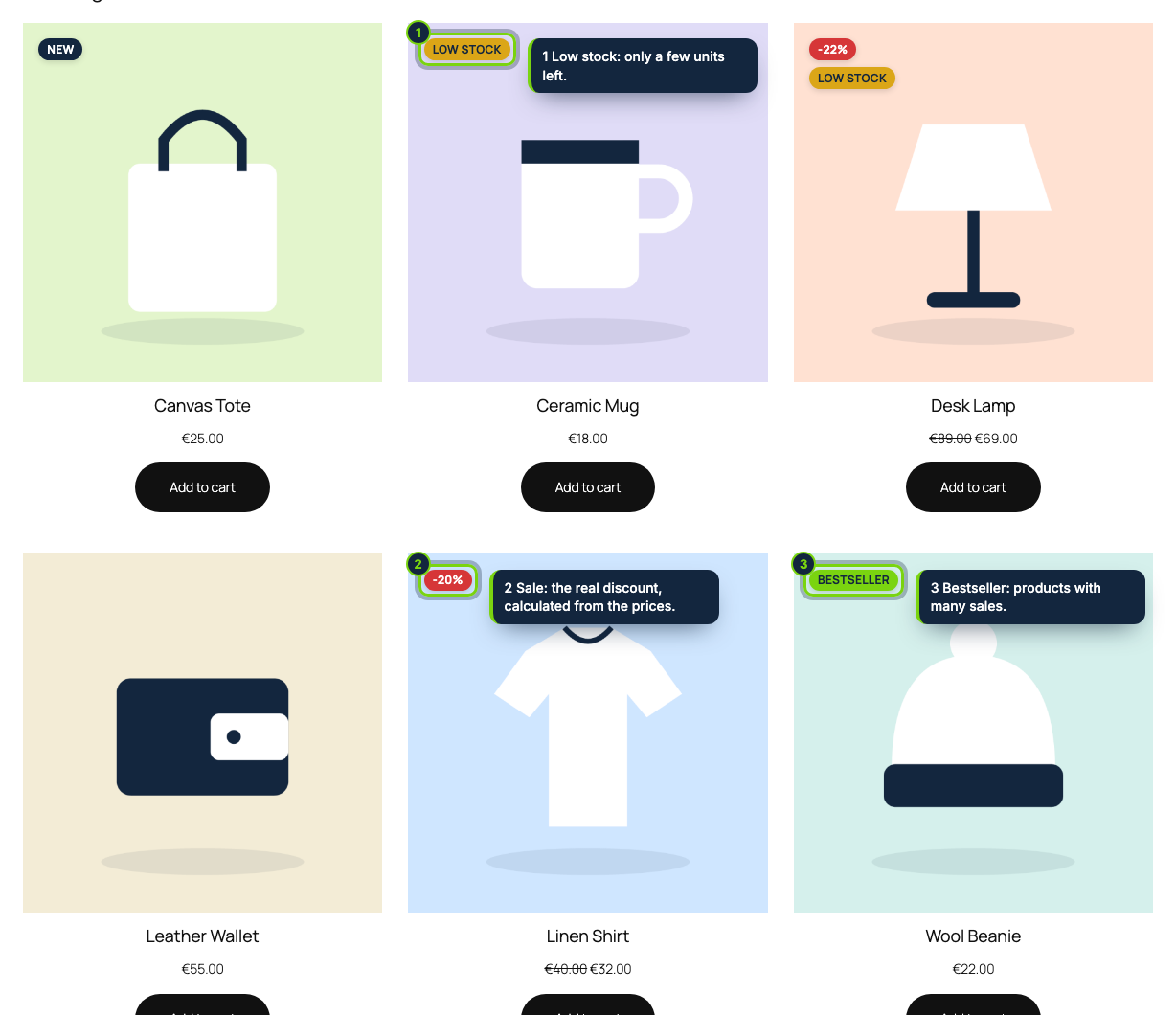
- Low stock only for products with Manage stock ticked; Bestseller counts WooCommerce total sales
A WooCommerce store tells shoppers little more than “Sale!” on discounted items. Smart Product Badges replaces that flash with the actual percentage and adds three more signals (New, Low stock, Bestseller), all computed from data your products already carry.
How it fits into WooCommerce
- Where to configure
- WooCommerce › Settings › Products › Badges, also reachable from the plugin’s Settings link on the Plugins screen. You set the maximum badges per product (2 by default), the shape (pill, rounded, square) and, for each rule, an on/off switch, a threshold, a custom label and a colour.
- Block and classic themes
- With a block theme such as Twenty Twenty-Five, the badges are injected into the
product image blocks used by Product Collection and the single product gallery. With a classic theme they are
printed via
woocommerce_before_shop_loop_item_titleandwoocommerce_before_single_product_summary. - What each rule reads
- Sale compares the regular and sale price (for variable products, the biggest saving among variations). New counts days since publication (30). Low stock needs Manage stock and triggers at or below 5 units. Bestseller uses the product’s total sales (50).
- Requirements
- WooCommerce 11.x, WordPress 7.0 or later, PHP 8.1 or later. Compatibility with HPOS (custom order tables) and the Cart and Checkout blocks is declared.
Installation
- Step 1
Download the zip under My account › Downloads on ecom-addons.com.
- Step 2
In wp-admin, go to Plugins › Add New Plugin › Upload Plugin and pick the file.
- Step 3
Hit Install Now, then Activate. Default rules kick in straight away.
FAQ
Do I still see WooCommerce’s “Sale!” bubble?
Not while the Sale rule is on: both the classic flash and the sale badge block are hidden.
Is my theme supported?
Block themes and classic themes are both handled. If you want to restyle the badges, target
.ecom-sb and .ecom-sb__badge in your theme’s CSS.
What language are the labels in?
Defaults follow the site language (English, Spanish or French). Type your own wording in the label fields if you prefer something else.
Version history
- Loading…
Reviews
Loading…
Bought it? Leave a review from your account.