
Features
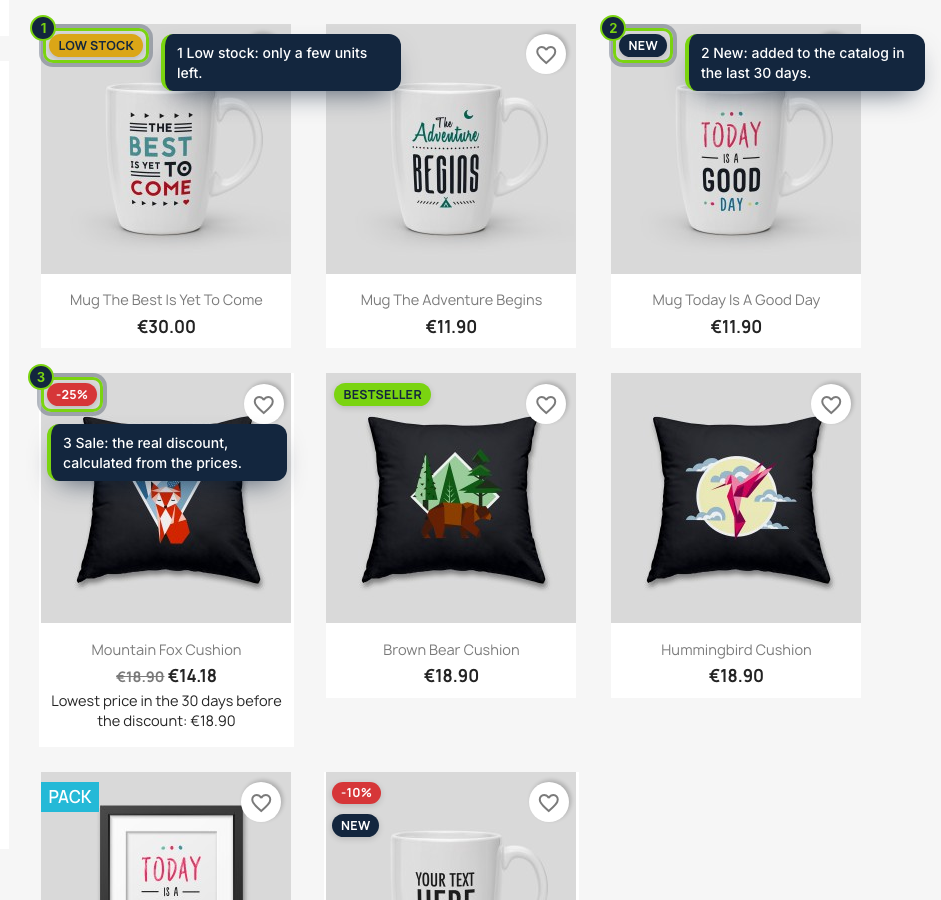
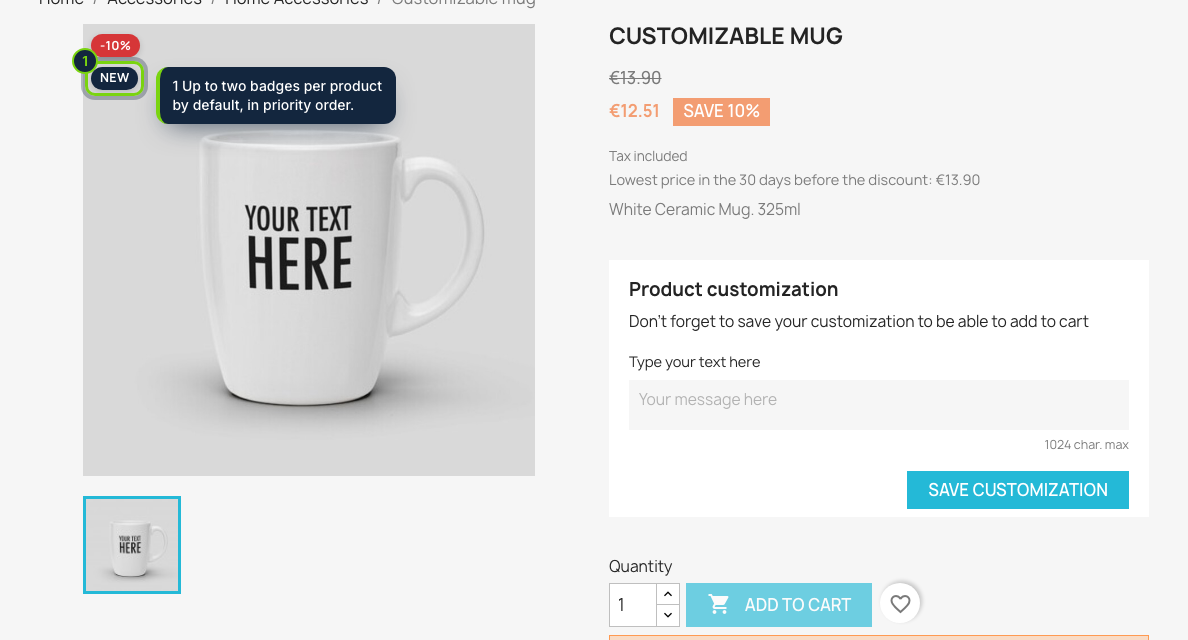
- Hooks into actionProductFlagsModifier: the badges travel with the flags your theme already prints on miniatures and the product cover
- Discount percentage taken from specific prices and catalog price rules, for the combination being displayed
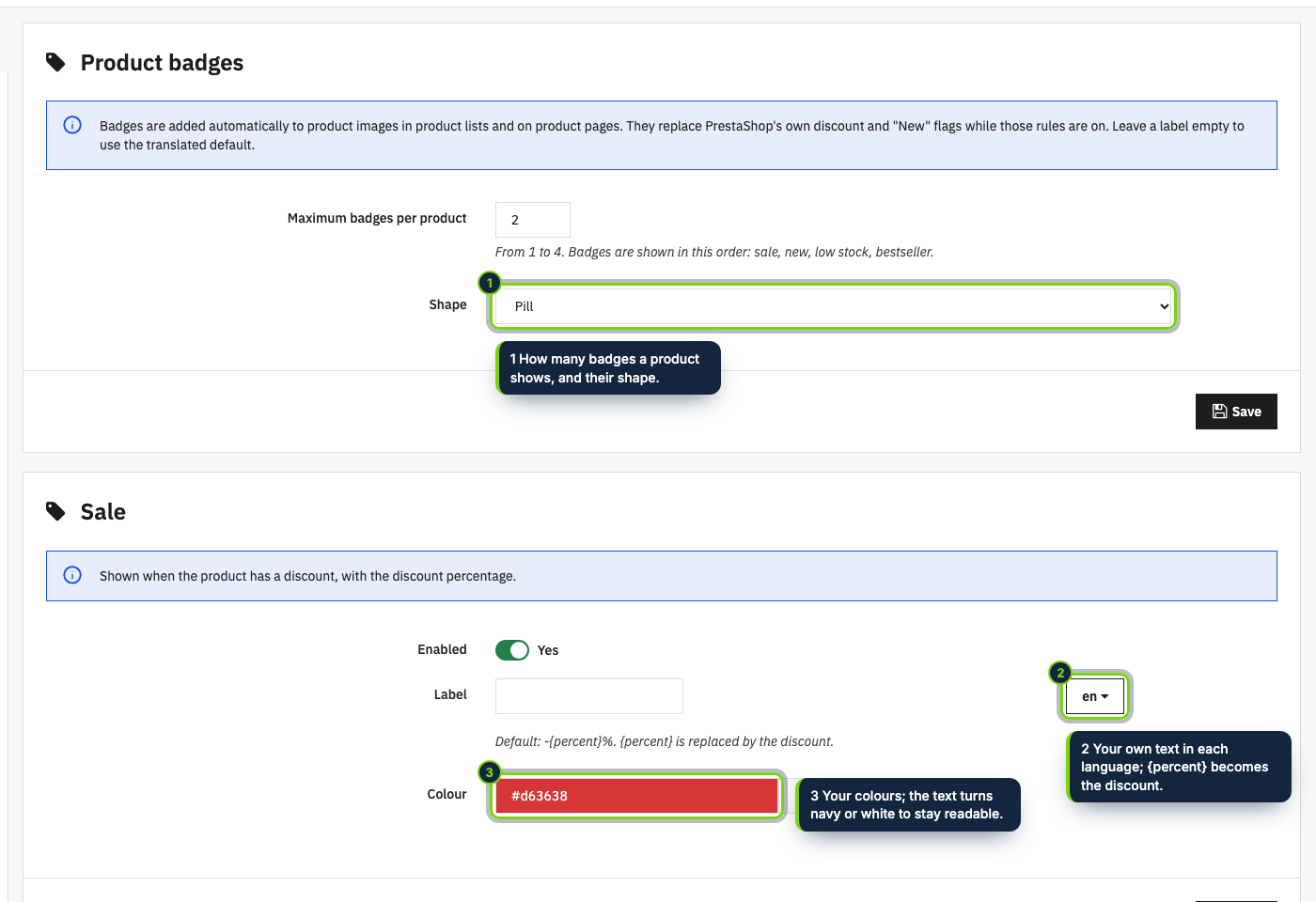
- One label field per installed language, with {percent} for the discount amount
- Removes the native discount and “New” flags while those rules are on; Pack, Online only and similar flags stay
- Bestseller relies on the units sold PrestaShop already records; Low stock respects stock management and skips virtual products
Highlighting promotions, recent additions or best-selling items in PrestaShop usually means editing products one by one or touching theme templates. Smart Product Badges works out the right badges for each product from four rules and hands them to your theme alongside its other product flags.
How it fits into PrestaShop
- Settings
- Modules › Module Manager › Smart Product Badges › Configure. One section per rule (on/off, threshold, label, colour), plus the maximum number of badges per product (2 by default, up to 4) and the shape: pill, rounded or square.
- Front office
- No template override and no JavaScript. The module registers
actionProductFlagsModifier, so badges show wherever the theme renders flags: category and search listings and the product page cover. A small stylesheet and your colours are loaded throughactionFrontControllerSetMediaanddisplayHeader. - Rules
- Sale shows the percentage the customer actually gets; it stays hidden in catalog mode or when prices are not displayed. New counts the days since the product was added (30). Low stock appears at or below your threshold (5) for in-stock items. Bestseller starts at 50 units sold.
- Compatibility
- PrestaShop 8.2 and 9.0 and PHP 8.1 or later. Tested with the Classic theme.
Installation
- Step 1
Get the zip from My account › Downloads on ecom-addons.com.
- Step 2
In the back office, open Modules › Module Manager and click Upload a module.
- Step 3
Drop the zip. Badges appear at once with the default rules; click Configure to adjust them.
FAQ
Will my product cards end up with two discount labels?
No. While Sale and New are enabled, the core discount and “New” flags are taken out. Other flags your theme prints are left alone.
Does it work with a theme other than Classic?
Any theme that displays product flags shows them. CSS classes
such as .ecom-sb__badge--sale let you fine-tune the look.
Can the wording change between languages?
Yes. Each label has a field per shop language; leave it blank to use the translated default (English, Spanish or French).
Version history
- Loading…
Reviews
Loading…
Bought it? Leave a review from your account.