
Features
- Hooks displayProductAdditionalInfo on the product page and displayShoppingCartFooter in the cart; tested with the Classic theme
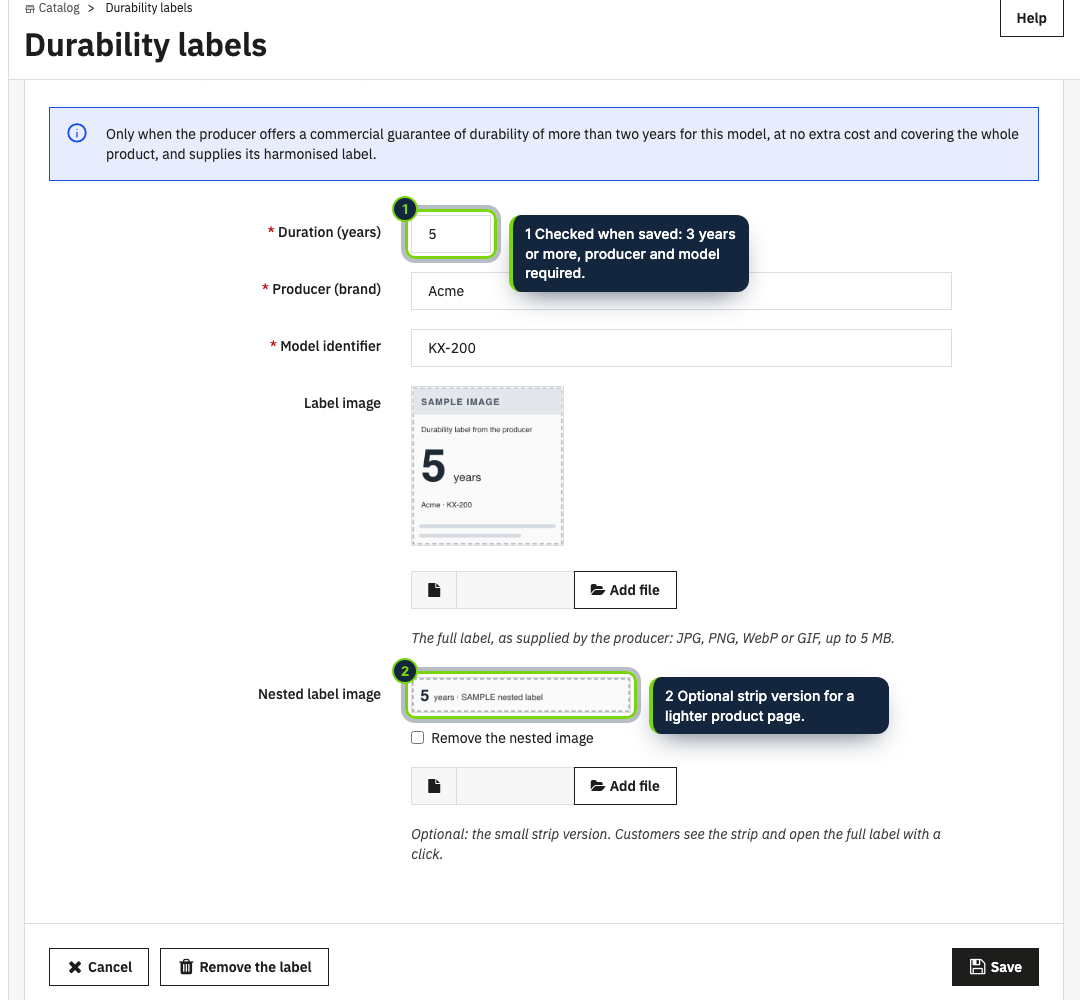
- New back-office page, Catalog › Durability labels: every product with its label, a filter for labelled ones and an Edit form per product
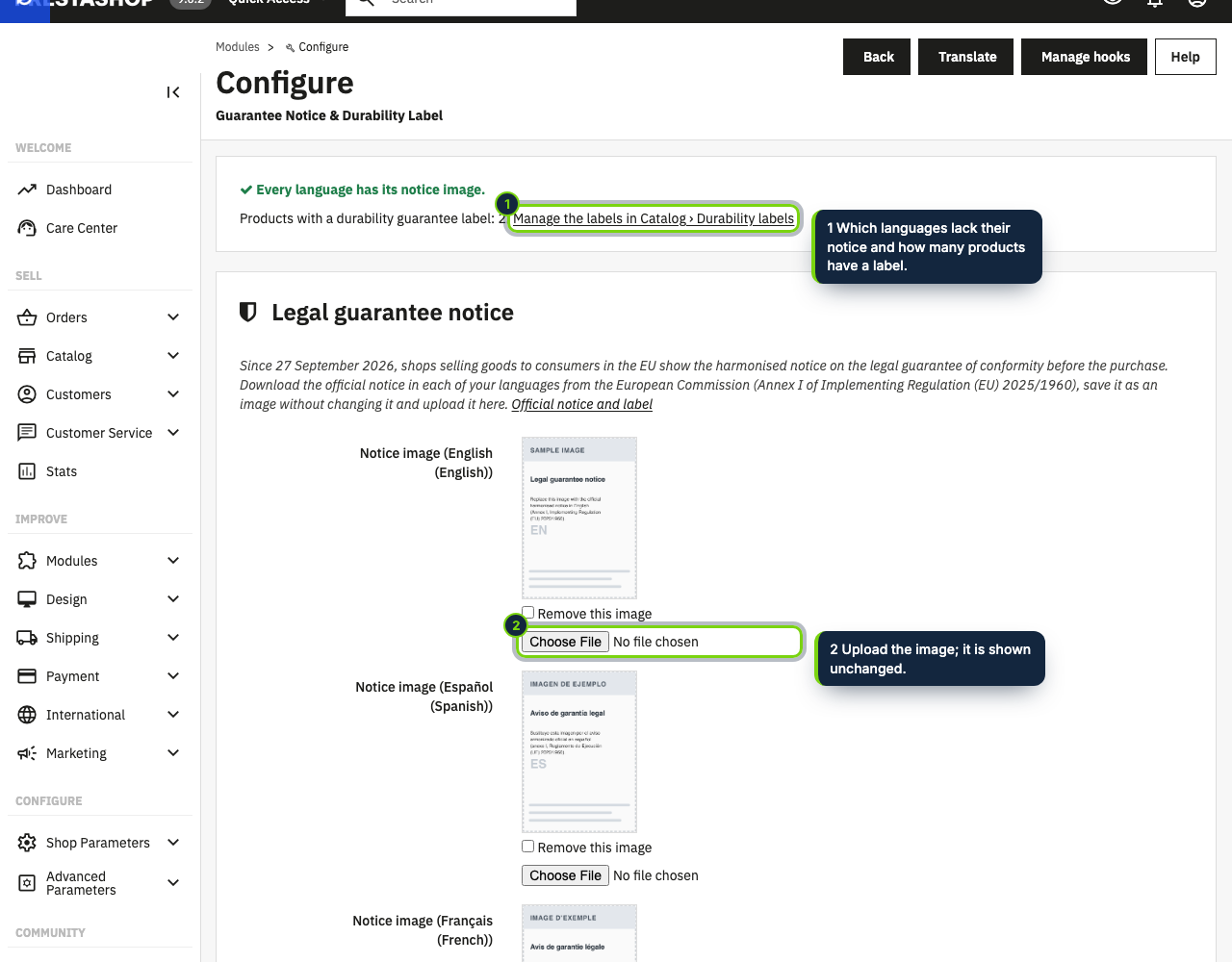
- Configure page with one notice upload per installed language, a switch for product pages, one for the cart, and a width from 240 to 1200 px
- Uploads up to 5 MB are checked to be real images (JPG, PNG, WebP or GIF) and kept in img/ecomaddonslegalguarantee/
- Label form validated on save: 3 to 99 whole years, producer brand and model, full image required, strip image optional
- Deleting a product in the catalogue also deletes its label, through actionProductDelete
- Virtual products show neither notice nor label; the cart notice needs at least one physical product
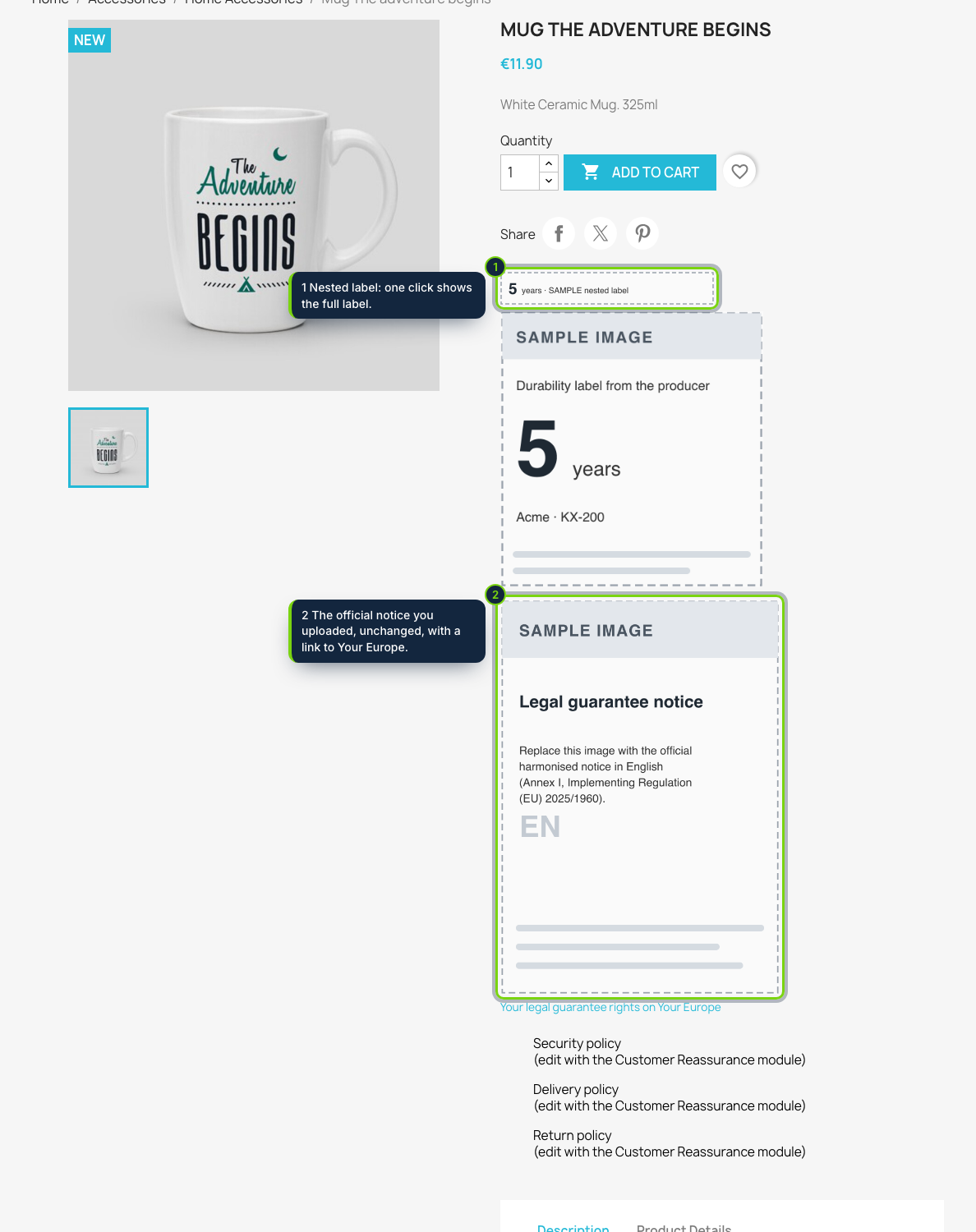
From 27 September 2026, Directive (EU) 2024/825 obliges EU sellers of goods to remind shoppers of the legal guarantee of conformity with the harmonised notice before they buy, and to display the harmonised label whenever a producer grants a commercial durability guarantee longer than two years. Implementing Regulation (EU) 2025/1960 fixes the artwork of both. This module gives a PrestaShop store a place to upload them and shows them where the purchase decision is made.
How it fits into PrestaShop
- Versions
- PrestaShop 8.2 and 9.0, PHP 8.1 or later. The theme needs the
displayProductAdditionalInfoanddisplayShoppingCartFooterhooks, as Classic has. - Module settings
- Under Modules › Module Manager › Configure, one upload field per language of the shop plus the two display switches and the width. A status panel lists the languages still missing their notice (they fall back to the default language’s image) and counts the products with a label.
- Catalog menu
- The module adds Catalog › Durability labels. Open a product there to enter the duration,
brand and model and to upload the producer’s label, plus the optional strip that expands on the first click
through a native
<details>element. - Data
- Labels live in their own table, one row per product, so all combinations of a product share it. Uninstalling drops the table, the settings and the uploaded images.
Installation
- Step 1
Download the zip from My account › Downloads on ecom-addons.com.
- Step 2
In the back office, go to Modules › Module Manager and click Upload a module.
- Step 3
Choose the zip. Catalog › Durability labels appears in the menu.
- Step 4
Click Configure and upload the notice image for each language.
FAQ
Where do I get the notice images?
From the European Commission or Annex I of the Official Journal, in each language your shop uses. They carry EU logos, so they are not bundled; save them as images without cropping.
Do I need a label on every product?
No. Only products whose producer offers a durability guarantee of more than two years, free of charge and for the whole product, get one; the rest show the notice alone.
Does the notice follow the shop language?
Yes, each page shows the image uploaded for its language.
The module displays the files you supply where you switch it on; which products qualify and how the law applies to your store are your responsibility. It is not legal advice.
Version history
- Loading…
Reviews
Loading…
Bought it? Leave a review from your account.