
Features
- Works with block themes through the Add to Cart Form and Cart blocks, and with classic themes through the single product summary and cart table hooks
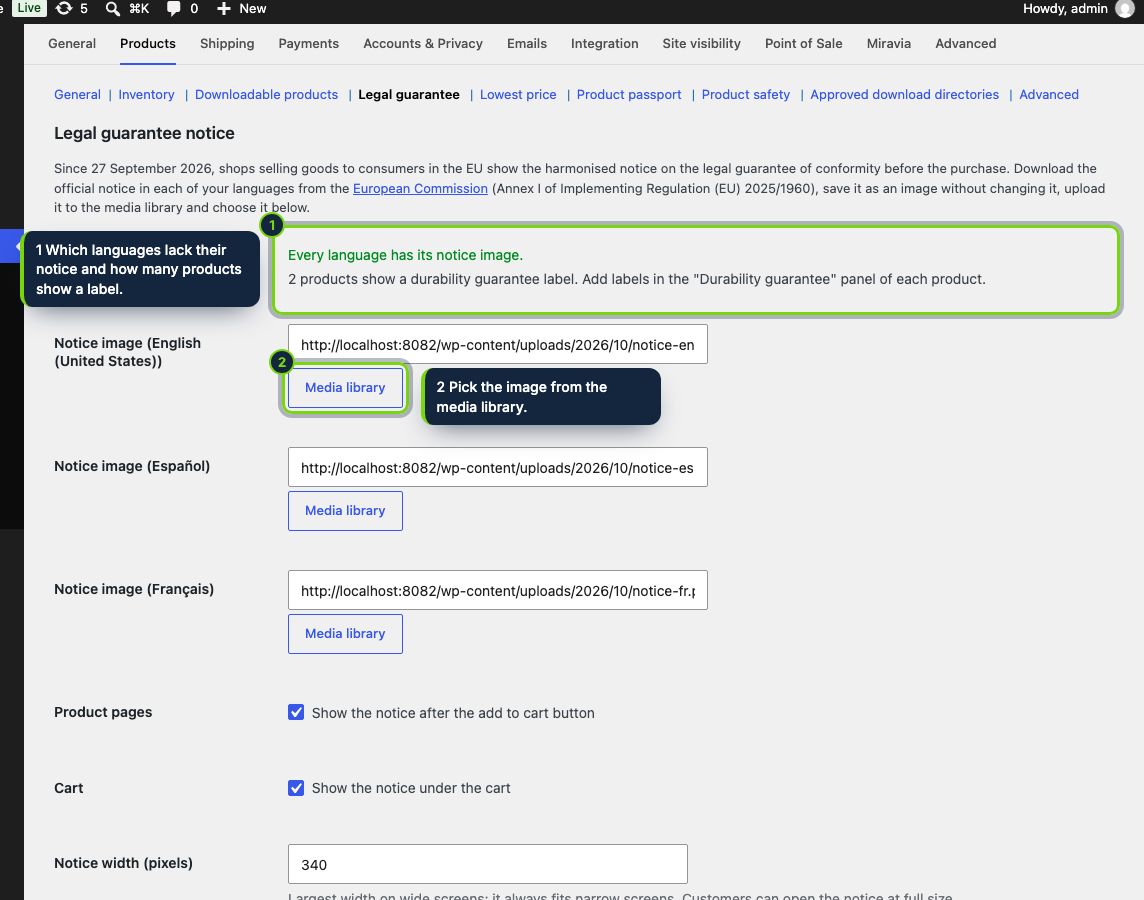
- Settings in WooCommerce › Settings › Products › Legal guarantee, with a Media library picker for each language’s notice
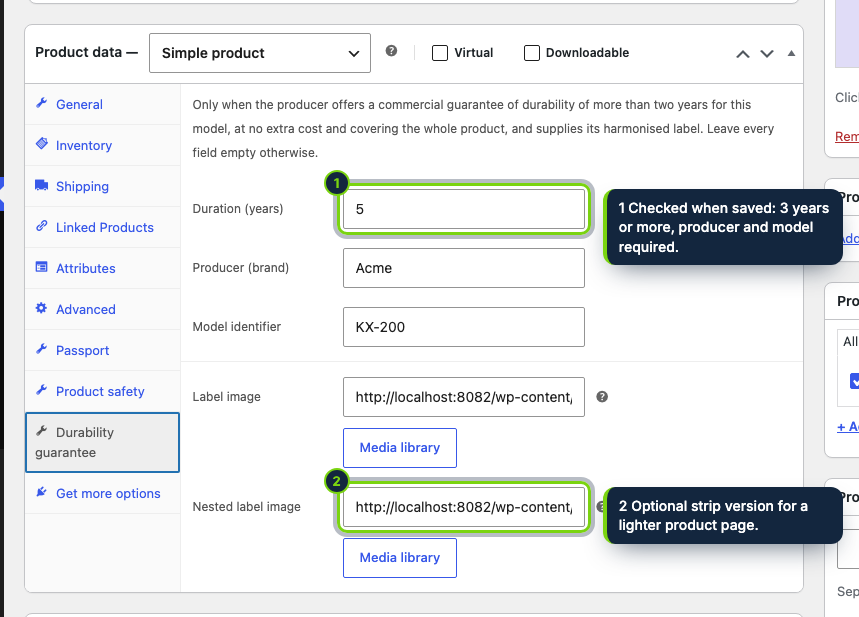
- “Durability guarantee” tab in the product data box, hidden for virtual and downloadable products
- Label values saved as product meta: whole years from 3 to 99, producer brand, model, label image and an optional strip image
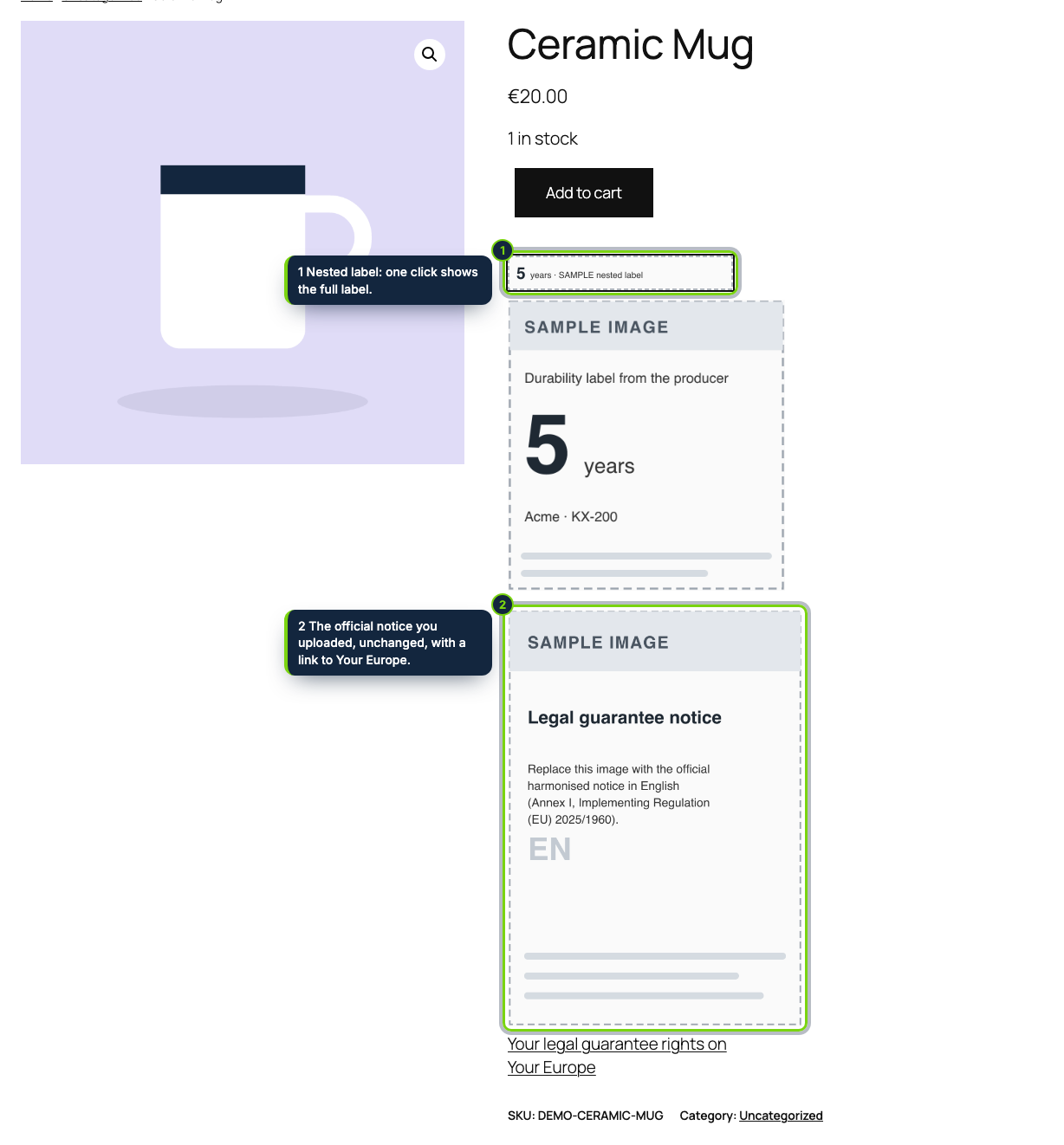
- Strip version expands into the full label on the first tap, using a native details element with no JavaScript
- Notice addresses must be https:// or site-relative images; anything else is refused when you save
- Declares compatibility with HPOS and the Cart and Checkout blocks; ships in English, Spanish and French
Since 27 September 2026, anyone selling goods to EU consumers must, under Directive (EU) 2024/825, point to the legal guarantee of conformity before checkout using the harmonised notice, and must show the harmonised label when the producer offers a durability guarantee of more than two years at no extra cost. Implementing Regulation (EU) 2025/1960 defines the look of both. This plugin lets a WooCommerce store pick those images from the media library and print them on product and cart pages.
How it fits into WooCommerce
- Requirements
- WooCommerce 11.x, WordPress 7.0 or later, PHP 8.1 or later.
- wp-admin
- A Legal guarantee section joins the Products tab of WooCommerce settings. Every installed language gets its own image field; a status line says which languages still have none (they reuse the site language’s image) and how many products show a label.
- Storefront
- In block themes the output is appended to the
woocommerce/add-to-cart-formandwoocommerce/cartblocks; in classic themes it useswoocommerce_single_product_summaryandwoocommerce_after_cart_table. The cart notice appears when at least one physical item is in the cart. - Product editor
- Enter duration, brand and model and choose the producer’s images in the Durability guarantee tab. Wrong values block the save and are listed; empty every field to drop the label.
- Uninstall
- Deletes the options and the
_ecom_lg_*product meta; your images stay in the media library.
Installation
- Step 1
Download the zip from My account › Downloads on ecom-addons.com.
- Step 2
In wp-admin, open Plugins › Add New Plugin › Upload Plugin and choose the file.
- Step 3
Click Install Now, then Activate.
- Step 4
Upload the official notices to Media › Add New and select them in WooCommerce › Settings › Products › Legal guarantee.
FAQ
My site is multilingual through a translation plugin. Does each language get its notice?
Yes. The notice follows the page language, and each language uses the image set for it.
Is the label shown on downloadable products?
No. The tab is hidden for virtual and downloadable products and they show neither the notice nor a label.
Why are the official images not included?
They bear EU logos. Download the notice from the European Commission and get the label from the producer, then upload them unchanged.
The plugin prints the files you provide where you enable it; deciding which products qualify and how the rules apply to you stays with your shop. It is not legal advice.
Version history
- Loading…
Reviews
Loading…
Bought it? Leave a review from your account.