
Features
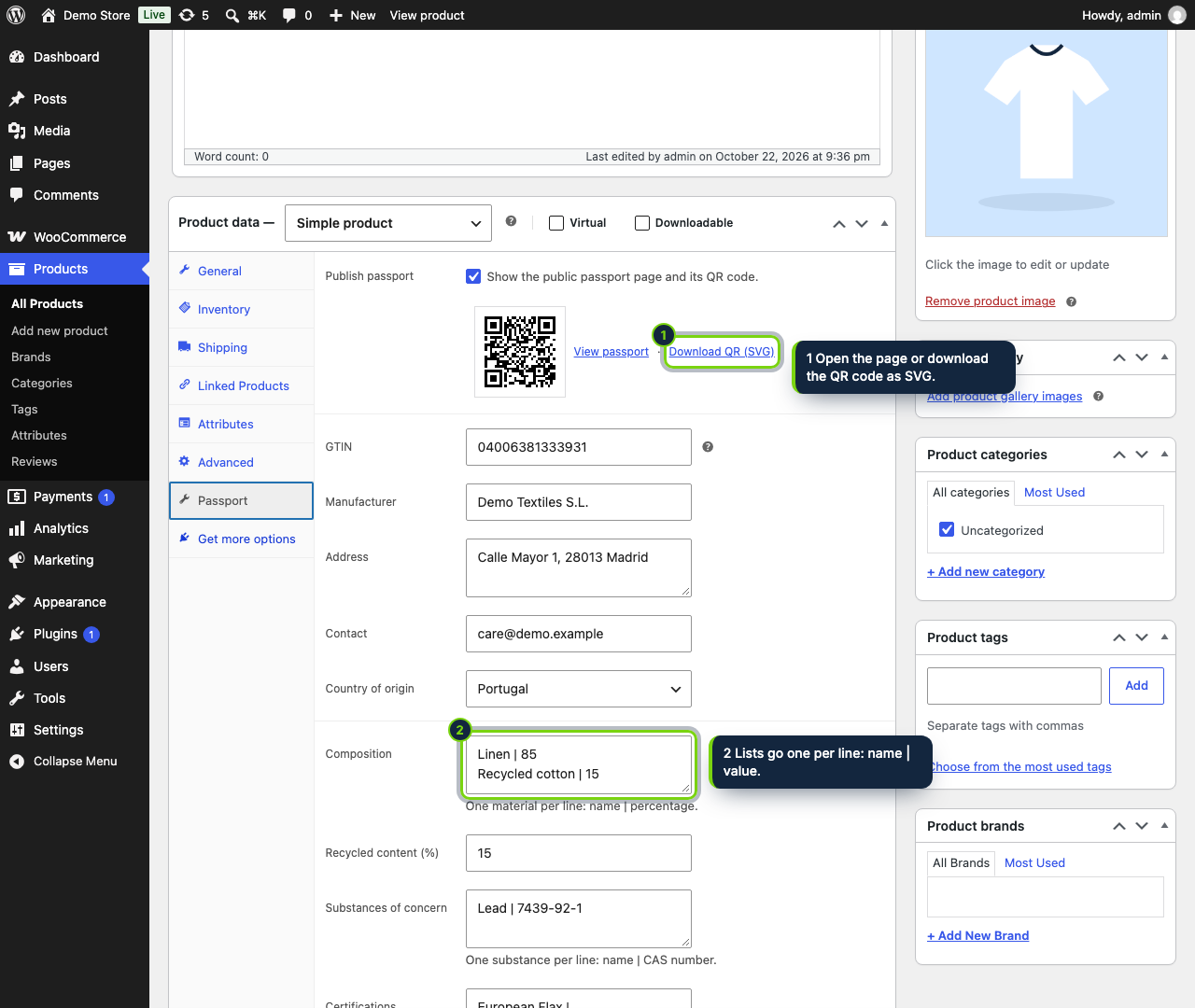
- A Passport tab beside General, Inventory and Shipping in the Product data box, saved with the product when you click Update
- Options in WooCommerce › Settings › Products › Product passport, with a Settings shortcut on the Plugins screen
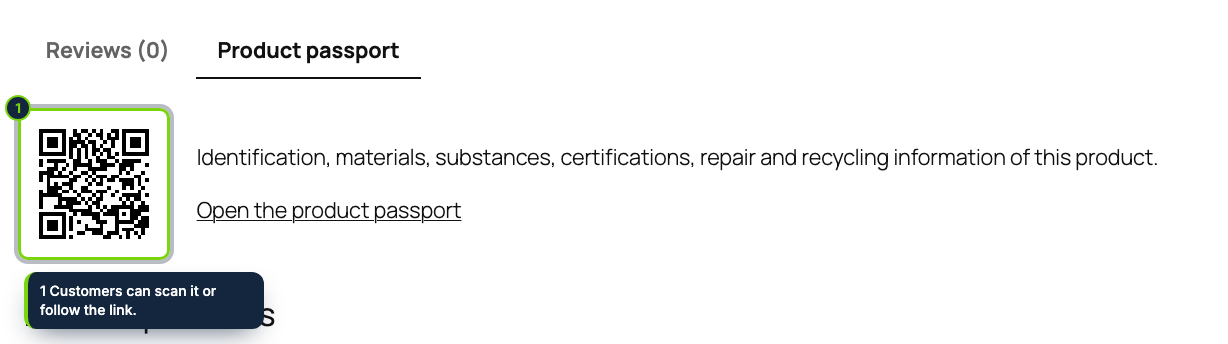
- A Product passport tab added to the single product page through the woocommerce_product_tabs filter, which you can switch off
- WordPress rewrite rules for /product-passport/{id}, /product-passport/{id}/qr.svg and /01/{GTIN}; any permalink structure except Plain
- Declares compatibility with HPOS (custom order tables) and the cart and checkout blocks; requires the WooCommerce plugin to be active
- Mistakes such as a bad GTIN check digit, an unknown CAS number or materials above 100 % appear as an admin notice and the passport stays unpublished
- Kept in product meta, removed by the plugin’s uninstall routine; Spanish and French .po/.mo files included
In wp-admin, the WooCommerce product editor handles prices, inventory, shipping and attributes, yet offers no field for the origin of an item, its materials, the substances it contains or its repair and recycling instructions. This plugin adds those fields to the product and publishes them on a lightweight page that a QR code on your packaging links to.
How it fits into WooCommerce
- Product editor
- Open any product and use the Passport tab of Product data. Lists (materials, substances, certifications) take one entry per line. Click Update as usual; if a value is wrong, a notice at the top of the screen tells you which field or line to correct.
- Once published
- The tab shows a preview of the QR code, a link to the public page and an SVG download for your labels.
- Settings
- WooCommerce › Settings › Products › Product passport decides whether QR codes open the passport page or a GS1 Digital Link address, and whether shoppers see a Product passport tab next to the description.
- Front end
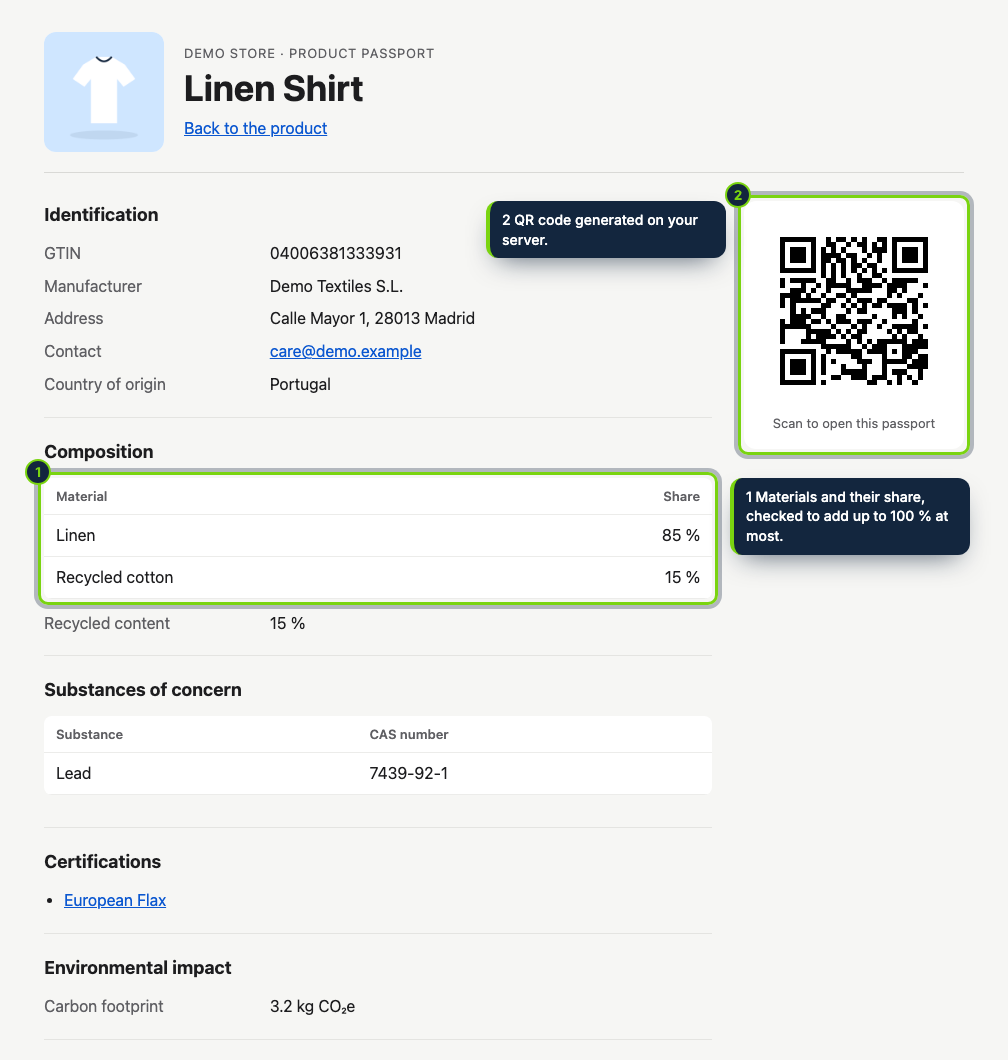
- The passport lives at its own URLs, served through WordPress rewrite rules. It is static HTML with schema.org markup and no JavaScript, so it loads fast on a phone and prints cleanly.
- Storage
- Everything sits in post meta of the product (
_ecom_pp_passportand two helper keys). Deleting the plugin from the Plugins screen clears that meta and its options. - Requirements
- WooCommerce 11.x, WordPress 7.0 or newer, PHP 8.1 or newer.
Regulation (EU) 2024/1781 on ecodesign is the source of the EU digital product passport; delegated acts list, product group by product group, what a passport must contain. Use the plugin to hold and publish that data, and check the act for your products yourself: the plugin does not do that for you.
Installation
- Step 1
Download the zip from My account › Downloads on ecom-addons.com.
- Step 2
In wp-admin, go to Plugins › Add New Plugin › Upload Plugin, pick the zip, then Install Now and Activate.
- Step 3
In Settings › Permalinks, make sure the structure is not Plain.
- Step 4
Edit a product, fill in the Passport tab and tick Publish passport.
FAQ
Can variations have different passports?
Not in this version: the passport is attached to the parent product and covers all of its variations.
Is it safe with HPOS enabled?
Yes. The plugin declares compatibility with high-performance order storage; it never touches orders, only product meta.
Why does /product-passport/ return a 404?
The pretty URLs need a permalink structure other than Plain. Pick one in Settings › Permalinks and save.
Version history
- Loading…
Reviews
Loading…
Bought it? Leave a review from your account.