
Features
- A new Catalog › Product passports page in the back office listing ID, name, reference and a Published / Not published badge for every product
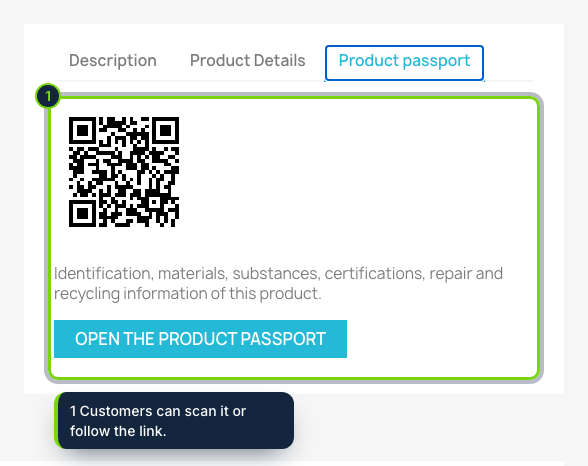
- A Product passport tab on the product sheet through the displayProductExtraContent hook, showing the QR code and a button to the passport
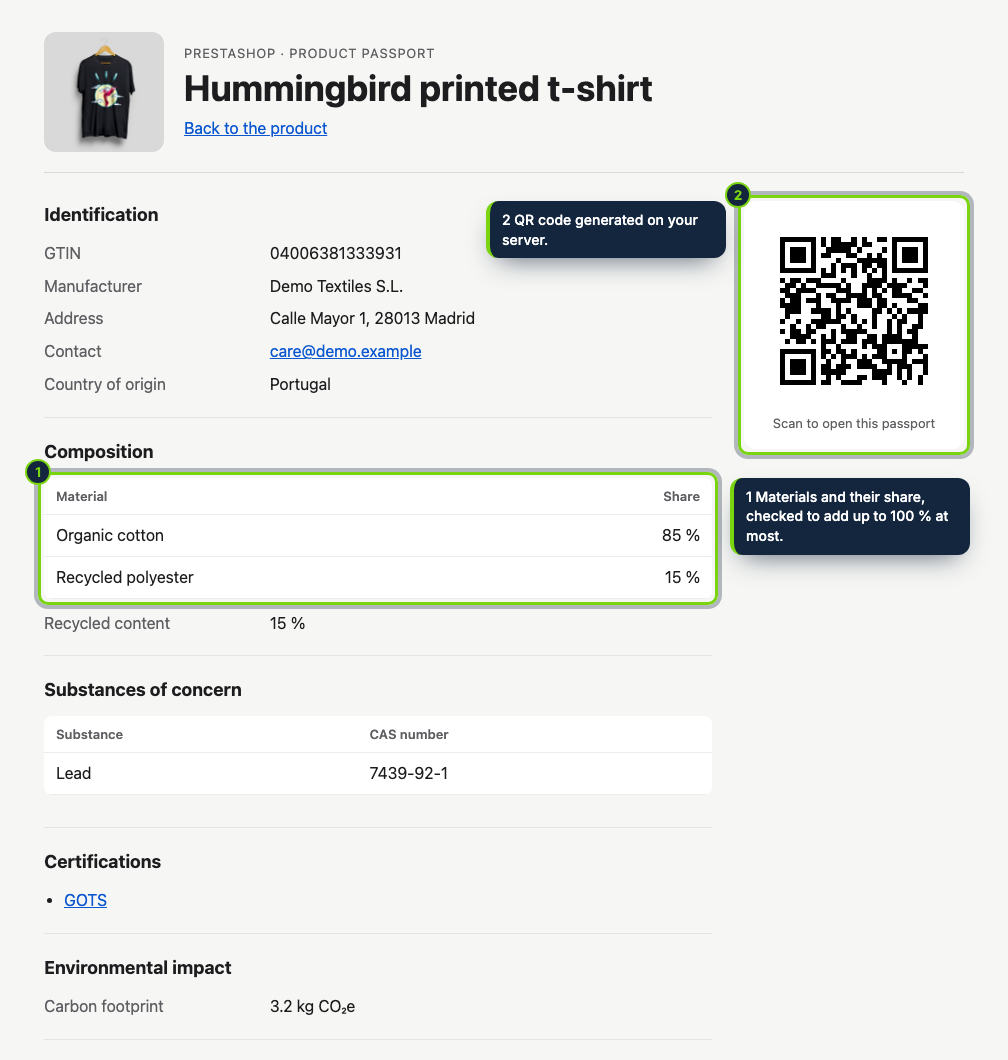
- Friendly URLs declared by the module through moduleRoutes: /product-passport/{id}, its qr.svg and the GS1 Digital Link route /01/{GTIN}
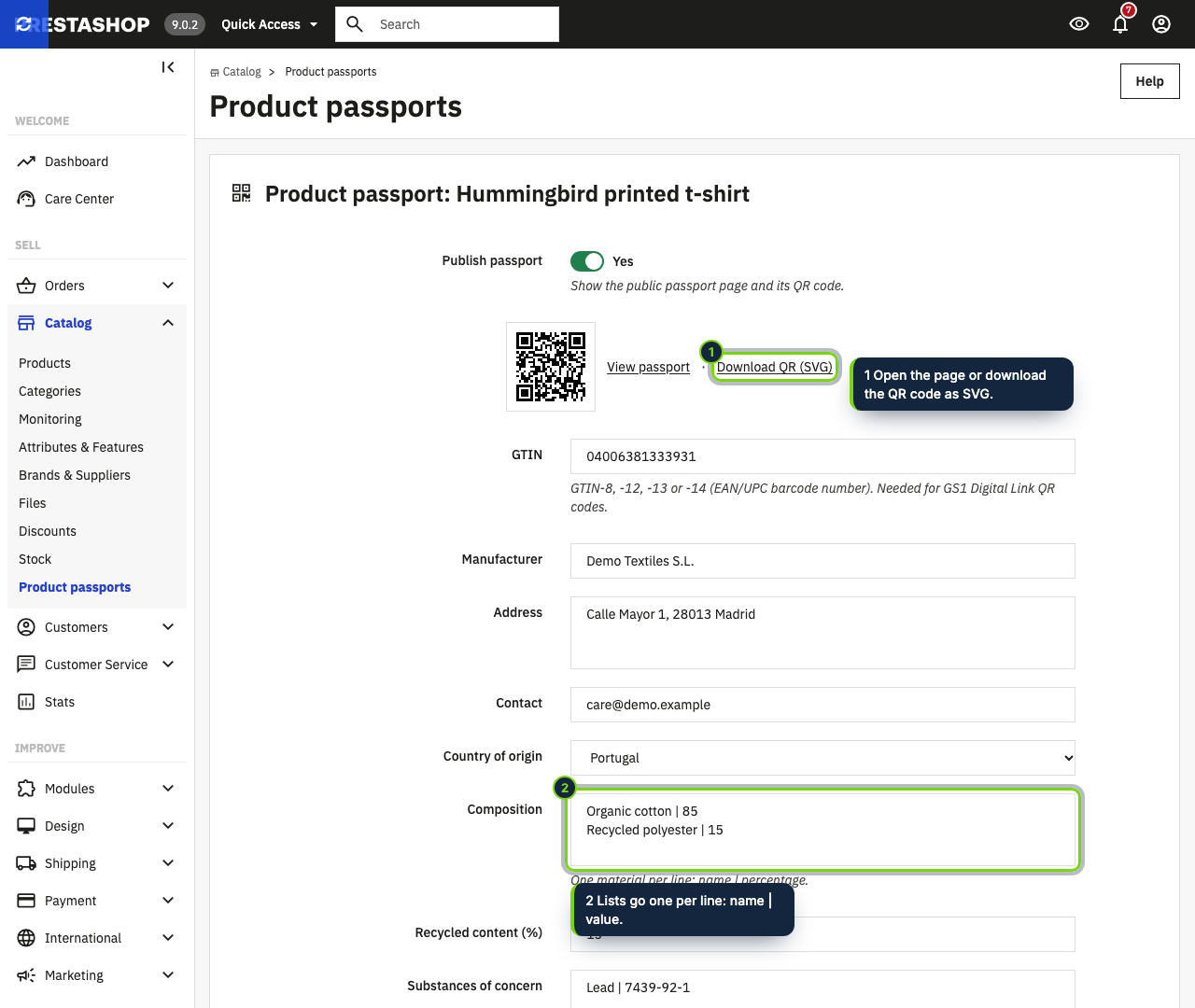
- The edit form previews the QR code and offers it as an SVG download for your label printer
- Saving rejects a wrong GTIN check digit, invalid CAS numbers, compositions above 100 % and broken links, and keeps that passport offline
- QR codes encoded by the module itself on your PrestaShop server; the passport page follows the shop language (English, Spanish, French)
A PrestaShop product sheet covers price, combinations, stock and images, but has no room for where the product comes from, what it is made of, which substances it contains or how to repair and recycle it. Product Passport & QR keeps that information next to your catalog and publishes it on a dedicated page that customers open by scanning the QR code on the label or the box.
How it fits into PrestaShop
- Back office
- Installing the module adds Catalog › Product passports. Click Edit next to a product to fill in its passport; materials, substances and certifications are typed one per line. Once the passport is published, the form shows the QR code, a link to the public page and a download link.
- Module configuration
- From Modules › Module Manager › Configure you choose where QR codes point (the passport page or a GS1 Digital Link address) and whether the product page shows the passport tab.
- Storefront
- The tab is added through the
displayProductExtraContenthook, so it appears in themes that display extra product content, such as Classic. The public page is plain HTML without JavaScript, printable, with schema.org data. - Routes and data
- The module declares its routes through
moduleRoutesand stores passports in its own table,ps_ecom_product_passport. Uninstalling drops that table and its two configuration values. - Compatibility
- PrestaShop 8.2 and 9.0 with PHP 8.1 or later.
Digital product passports come from the Ecodesign Regulation (EU) 2024/1781, and each product group gets its data requirements in a separate delegated act. The module gives you the place to store and publish that data; checking which rules cover your products is still up to you.
Installation
- Step 1
Get the zip file from My account › Downloads on ecom-addons.com.
- Step 2
In the back office, open Modules › Module Manager, click Upload a module and drop the zip.
- Step 3
Go to Catalog › Product passports, edit a product and tick Publish passport when the data is ready.
FAQ
Does each combination get its own passport?
No. The passport belongs to the product, so all its combinations share the same page and QR code.
What happens in multistore?
Passports are stored per product, not per shop, so every shop shows the same data. Separate values per shop are not available in this version.
Do I need friendly URLs?
They are recommended, and the short GS1 Digital Link addresses (/01/{GTIN}) rely on
them.
Version history
- Loading…
Reviews
Loading…
Bought it? Leave a review from your account.