
 The banner on the first visit: accept, reject and choose side by side, with the same look. Tracking scripts wait for the answer.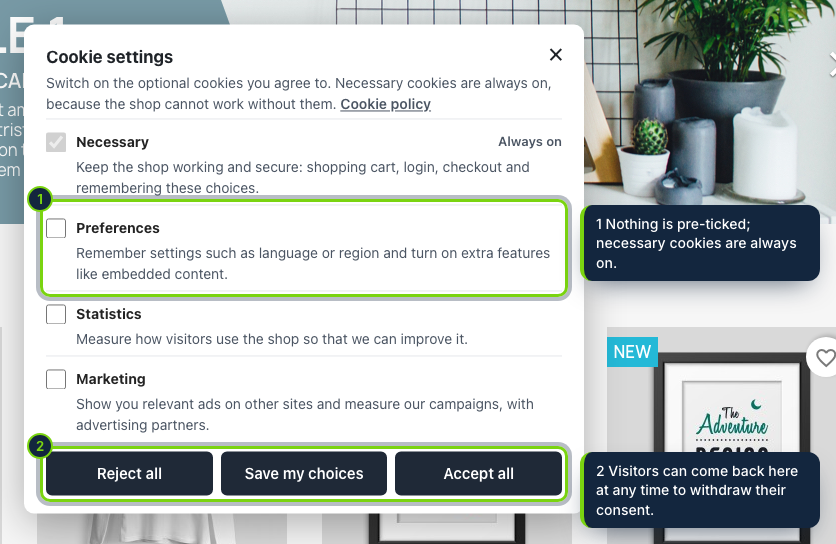
 +1
+1Features
- Filters the finished HTML of every front controller through the actionOutputHTMLBefore hook, so scripts from any module or CMS page are caught
- Banner printed in displayBeforeBodyClosingTag: tested on the Classic theme, works with any theme that keeps this hook
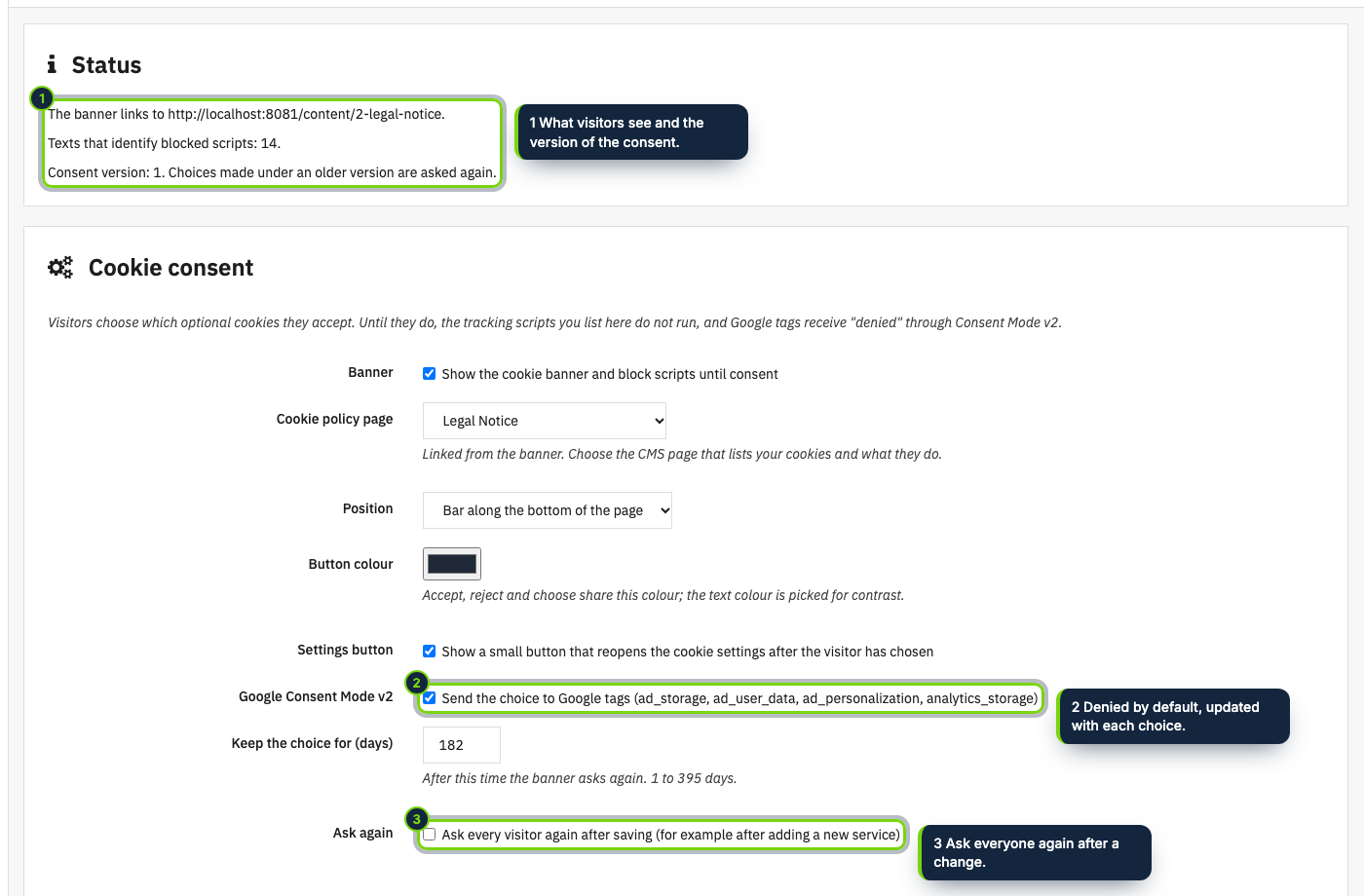
- One Configure page in the Module Manager: CMS page for your cookie policy, bottom bar or corner box, button colour, how many days the answer is kept
- First screen with Reject all, Choose and Accept all looking identical; Preferences, Statistics and Marketing start unticked
- Consent Mode v2 defaults written right after the opening head tag, before the theme or any module prints a line
- Safe with CCC (combine, compress, cache) turned on: only scripts that match a blocking rule are rewritten
- Banner wording in English, Spanish and French, editable under International › Translations › Module translations
On a PrestaShop store, tracking code comes in from many directions: the theme, marketing and payment modules, snippets someone pasted into a CMS page. Under art. 5(3) of the ePrivacy Directive none of it may set non-essential cookies until the visitor agrees, and saying no has to take no more effort than saying yes. This module catches those tags inside the page and lets them run only once their category has been accepted.
How it fits into PrestaShop
- Versions
- PrestaShop 8.2 and 9.0 with PHP 8.1 or later.
- Back office
- Everything sits on the module’s Configure page in Modules › Module Manager. A status on top says whether a cookie policy page is linked, how many texts identify blocked scripts and which consent version is live. The policy link points to one of your CMS pages.
- Hooks
actionOutputHTMLBeforeadds the Consent Mode defaults and turns blocked scripts intotext/plain;displayBeforeBodyClosingTagprints the banner;actionFrontControllerSetMediaregisters its CSS and its deferred JavaScript.- What gets blocked
- Ten known services are ticked from the start (Google tag and Tag Manager, Google Analytics, Clarity, Hotjar, Google Ads, Meta Pixel, TikTok Pixel, Microsoft Advertising, LinkedIn, Pinterest). For a widget that is not on the list, type part of its address under Also block.
- Changing one’s mind
- A round button, or any
#cookie-settingslink in your footer, reopens the choices; cookies of services the visitor drops are deleted. Tick Ask again after adding a service to show the banner to everyone once more.
Installation
- Step 1
Get the zip from My account › Downloads on ecom-addons.com.
- Step 2
In the back office, open Modules › Module Manager, click Upload a module and drop the zip.
- Step 3
The banner goes live with safe defaults. Click Configure and pick the CMS page that holds your cookie policy.
FAQ
Will it stop a pixel added by another module?
Yes, when that pixel matches one of the known services or a text you entered under Also block: the page is filtered after every module has rendered.
Can I leave CCC enabled in Performance?
Yes. The module’s own JavaScript ends up bundled with the theme’s and still runs, because only scripts matching a rule are touched.
Is this enough to be compliant?
It handles asking and blocking. The cookie policy, the list of cookies your store sets and how the law applies to you are still yours to decide; this page is not legal advice.
Version history
- Loading…
Reviews
Loading…
Bought it? Leave a review from your account.